mirror of
https://github.com/open-webui/docs.git
synced 2026-01-02 17:59:41 +07:00

83 lines
4.0 KiB
Markdown
83 lines
4.0 KiB
Markdown
---
|
|
title: "Monitor your LLM requests with Helicone"
|
|
sidebar_position: 19
|
|
---
|
|
|
|
:::warning
|
|
|
|
This tutorial is a community contribution and is not supported by the Open WebUI team. It serves only as a demonstration on how to customize Open WebUI for your specific use case. Want to contribute? Check out the contributing tutorial.
|
|
|
|
:::
|
|
|
|
# Helicone Integration with Open WebUI
|
|
|
|
Helicone is an open-source LLM observability platform for developers to monitor, debug, and improve **production-ready** applications, including your Open WebUI deployment.
|
|
|
|
By enabling Helicone, you can log LLM requests, evaluate and experiment with prompts, and get instant insights that helps you push changes to production with confidence.
|
|
|
|
- **Real-time monitoring with consolidated view across model types**: Monitor both local Ollama models and cloud APIs through a single interface
|
|
- **Request visualization and replay**: See exactly what prompts were sent to each model in Open WebUI and the outputs generated by the LLMs for evaluation
|
|
- **Local LLM performance tracking**: Measure response times and throughput of your self-hosted models
|
|
- **Usage analytics by model**: Compare usage patterns between different models in your Open WebUI setup
|
|
- **User analytics** to understand interaction patterns
|
|
- **Debug capabilities** to troubleshoot issues with model responses
|
|
- **Cost tracking** for your LLM usage across providers
|
|
|
|
## How to integrate Helicone with OpenWebUI
|
|
|
|
<iframe
|
|
width="560"
|
|
height="315"
|
|
src="https://www.youtube-nocookie.com/embed/8iVHOkUrpSA?si=Jt1GVqA0wY4UI7sF"
|
|
title="YouTube video player"
|
|
frameborder="0"
|
|
allow="accelerometer; autoplay; clipboard-write; encrypted-media; gyroscope; picture-in-picture; web-share"
|
|
allowfullscreen>
|
|
</iframe>
|
|
|
|
### Step 1: Create a Helicone account and generate your API key
|
|
|
|
Create a [Helicone account](https://www.helicone.ai/) and log in to generate an [API key](https://us.helicone.ai/settings/api-keys).
|
|
|
|
*— Make sure to generate a [write only API key](https://docs.helicone.ai/helicone-headers/helicone-auth). This ensures you only allow logging data to Helicone without read access to your private data.*
|
|
|
|
### Step 2: Create an OpenAI account and generate your API key
|
|
|
|
Create an OpenAI account and log into [OpenAI's Developer Portal](https://platform.openai.com/account/api-keys) to generate an API key.
|
|
|
|
### Step 3: Run your Open WebUI application using Helicone's base URL
|
|
|
|
To launch your first Open WebUI application, use the command from [Open WebUI docs](https://docs.openwebui.com/) and include Helicone's API BASE URL so you can query and monitor automatically.
|
|
|
|
```bash
|
|
# Set your environment variables
|
|
export HELICONE_API_KEY=<YOUR_API_KEY>
|
|
export OPENAI_API_KEY=<YOUR_OPENAI_API_KEY>
|
|
|
|
# Run Open WebUI with Helicone integration
|
|
docker run -d -p 3000:8080 \
|
|
-e OPENAI_API_BASE_URL="https://oai.helicone.ai/v1/$HELICONE_API_KEY" \
|
|
-e OPENAI_API_KEY="$OPENAI_API_KEY" \
|
|
--name open-webui \
|
|
ghcr.io/open-webui/open-webui
|
|
```
|
|
|
|
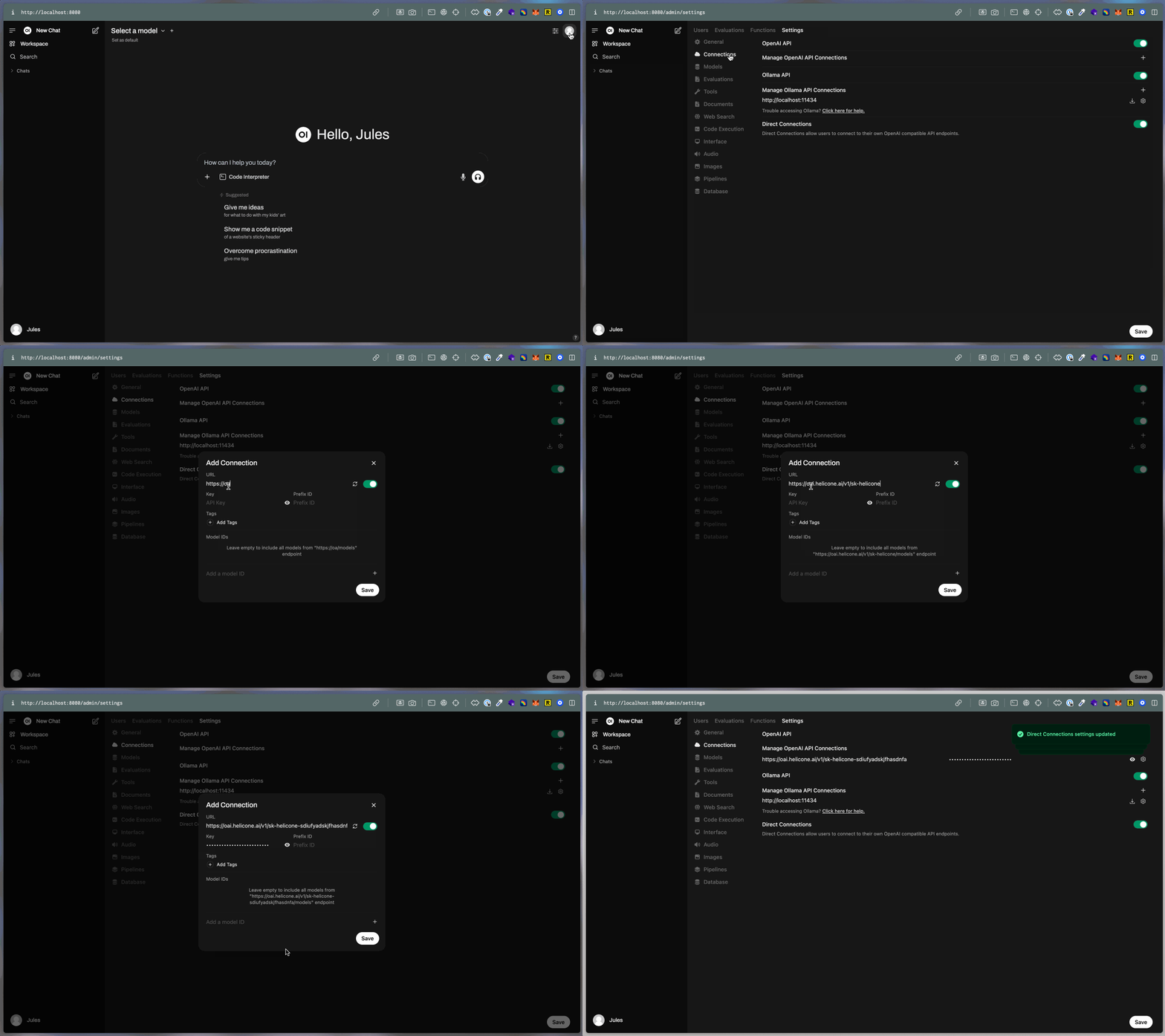
If you already have a Open WebUI application deployed, go to the `Admin Panel` > `Settings` > `Connections` and click on the `+` sign for "Managing OpenAI API Connections". Update the following properties:
|
|
|
|
- Your `API Base URL` would be ``https://oai.helicone.ai/v1/<YOUR_HELICONE_API_KEY>``
|
|
- The `API KEY` would be your OpenAI API key.
|
|
|
|
|
|
|
|
### Step 4: Make sure monitoring is working
|
|
|
|
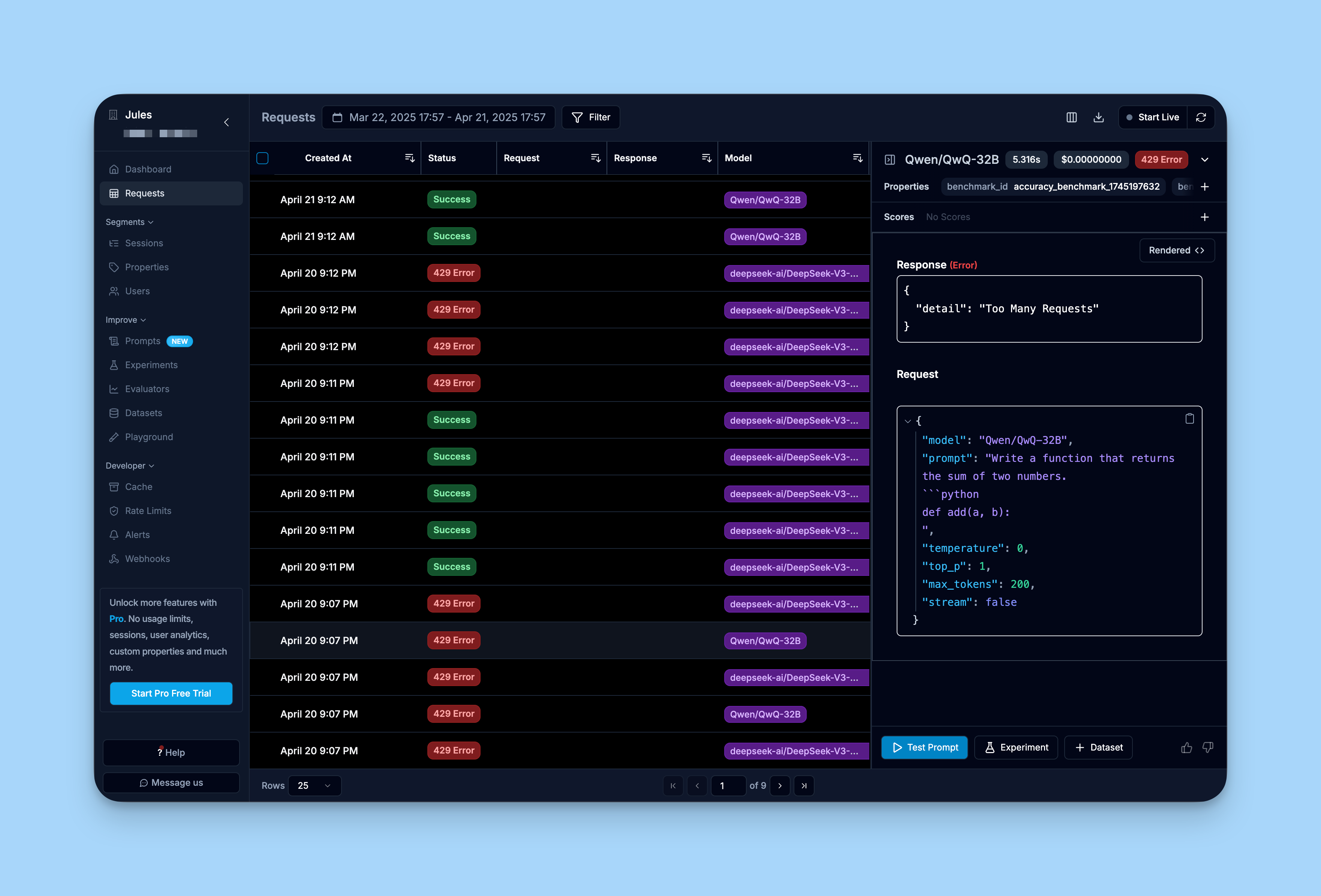
To make sure your integration is working, log into Helicone's dashboard and review the "Requests" tab.
|
|
|
|
You should see the requests you have made through your Open WebUI interface already being logged into Helicone.
|
|
|
|
|
|
|
|
## Learn more
|
|
|
|
For a comprehensive guide on Helicone, you can check out [Helicone's documentation](https://docs.helicone.ai/getting-started/quick-start).
|