mirror of
https://github.com/LibreChat-AI/librechat.ai.git
synced 2026-03-27 10:48:32 +07:00
 f2ebe0ef43
* 📝 docs(rag_api): Add reference to ollama docker url (#2671)

* Update rag_api.mdx

---------

Co-authored-by: Fuegovic <32828263+fuegovic@users.noreply.github.com>
103 lines
7.5 KiB
Plaintext
103 lines
7.5 KiB
Plaintext
---
|
|
title: RAG API
|
|
description: Configure Retrieval-Augmented Generation (RAG) API for document indexing and retrieval using Langchain and FastAPI. This API integrates with LibreChat to provide context-aware responses based on user-uploaded files.
|
|
---
|
|
|
|
# RAG API Configuration
|
|
|
|
**For further details, refer to the user guide provided here: [RAG API Presentation](/docs/user_guides/rag_api)**
|
|
|
|
---
|
|
|
|
**Currently, this feature is available to all Custom Endpoints, OpenAI, Azure OpenAi, Anthropic, and Google.**
|
|
|
|
OpenAI Assistants have their own implementation of RAG through the "Retrieval" capability. Learn more about it [here.](https://platform.openai.com/docs/assistants/tools/knowledge-retrieval)
|
|
|
|
It will still be useful to implement usage of the RAG API with the Assistants API since OpenAI charges for both file storage, and use of "Retrieval," and will be introduced in a future update.
|
|
|
|
Plugins support is not enabled as the whole "plugin/tool" framework will get a complete rework soon, making tools available to most endpoints (ETA Summer 2024).
|
|
|
|
**Still confused about RAG?** [Read the RAG API Presentation](/docs/user_guides/rag_api#what-is-rag) explaining the general concept in more detail with a link to a helpful video.
|
|
|
|
## Setup
|
|
|
|
To set up the RAG API with LibreChat, follow these steps:
|
|
|
|
### Docker Setup
|
|
|
|
For Docker, the setup is configured for you in both the default `docker-compose.yml` and `deploy-compose.yml` files, and you will just need to make sure you are using the latest docker image and compose files. Make sure to read the [Updating LibreChat guide for Docker](../install/installation/docker_compose_install.md#updating-librechat) if you are unsure how to update your Docker instance.
|
|
|
|
Docker uses the "lite" image of the RAG API by default, which only supports remote embeddings, leveraging embeddings proccesses from OpenAI or a remote service you have configured for HuggingFace/Ollama.
|
|
|
|
Local embeddings are supported by changing the image used by the default compose file, from `ghcr.io/danny-avila/librechat-rag-api-dev-lite:latest` to `ghcr.io/danny-avila/librechat-rag-api-dev:latest`.
|
|
|
|
As always, make these changes in your update URLs [Docker Compose Override File](/docs/configuration/docker_override). You can find an example for exactly how to change the image in `docker-compose.override.yml.example` at the root of the project.
|
|
|
|
If you wish to see an example of a compose file that only includes the PostgresQL + PGVector database and the Python API, see `rag.yml` file at the root of the project.
|
|
|
|
**Important:** When using the default docker setup, the .env file, where configuration options can be set for the RAG API, is shared between LibreChat and the RAG API.
|
|
|
|
### Local Setup
|
|
|
|
Local, non-container setup is more hands-on, and for this you can refer to the [RAG API repo.](https://github.com/danny-avila/rag_api/)
|
|
|
|
In a local setup, you will need to manually set the `RAG_API_URL` in your LibreChat `.env` file to where it's available from your setup.
|
|
|
|
This contrasts Docker, where is already set in the default `docker-compose.yml` file.
|
|
|
|
## Configuration
|
|
|
|
The RAG API provides several configuration options that can be set using environment variables from an `.env` file accessible to the API. Most of them are optional, asides from the credentials/paths necessary for the provider you configured. In the default setup, only `RAG_OPENAI_API_KEY` is required.
|
|
|
|
<Callout type="warning" title="Docker" emoji="🐳">
|
|
When using the default docker setup, the .env file is shared between LibreChat and the RAG API. For this reason, it's important to define the needed variables shown in the [RAG API readme.md](https://github.com/danny-avila/rag_api/blob/main/README.md)
|
|
</Callout>
|
|
|
|
Here are some notable configurations:
|
|
|
|
- `RAG_OPENAI_API_KEY`: The API key for OpenAI API Embeddings (if using default settings).
|
|
- Note: `OPENAI_API_KEY` will work but `RAG_OPENAI_API_KEY` will override it in order to not conflict with the LibreChat credential.
|
|
- `RAG_PORT`: The port number where the API server will run. Defaults to port 8000.
|
|
- `RAG_HOST`: The hostname or IP address where the API server will run. Defaults to "0.0.0.0"
|
|
- `COLLECTION_NAME`: The name of the collection in the vector store. Default is "testcollection".
|
|
- `CHUNK_SIZE`: The size of the chunks for text processing. Default is "1500".
|
|
- `CHUNK_OVERLAP`: The overlap between chunks during text processing. Default is "100".
|
|
- `EMBEDDINGS_PROVIDER`: The embeddings provider to use. Options are "openai", "azure", "huggingface", "huggingfacetei", or "ollama". Default is "openai".
|
|
- `EMBEDDINGS_MODEL`: The specific embeddings model to use from the configured provider. Default is dependent on the provider; for "openai", the model is "text-embedding-3-small".
|
|
- `OLLAMA_BASE_URL`: It should be provided if RAG API runs in docker and usually is `http://host.docker.internal:11434`.
|
|
|
|
There are several more configuration options.
|
|
|
|
For a complete list and their descriptions, please refer to the [RAG API repo.](https://github.com/danny-avila/rag_api/)
|
|
|
|
## Usage
|
|
|
|
Once the RAG API is set up and running, it seamlessly integrates with LibreChat. When a user uploads files to a conversation, the RAG API indexes those files and uses them to provide context-aware responses.
|
|
|
|
**To utilize the RAG API effectively:**
|
|
|
|
1. Ensure that the necessary files are uploaded to the conversation in LibreChat. If `RAG_API_URL` is not configured, or is not reachable, the file upload will fail.
|
|
2. As the user interacts with the chatbot, the RAG API will automatically retrieve relevant information from the indexed files based on the user's input.
|
|
3. The retrieved information will be used to augment the user's prompt, enabling LibreChat to generate more accurate and contextually relevant responses.
|
|
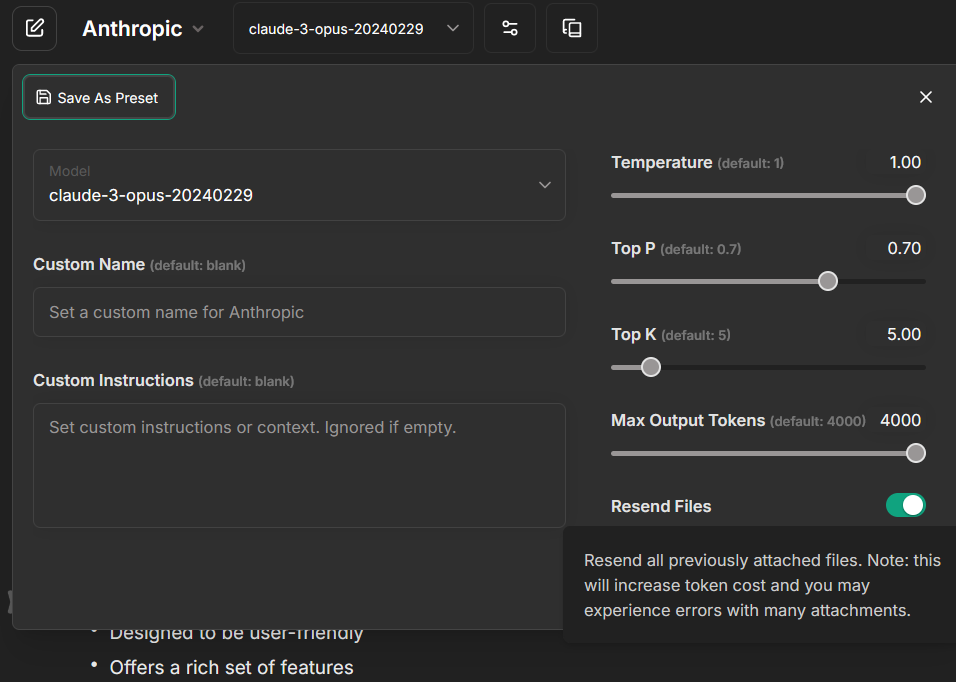
4. Craft your prompts carefully when you attach files as the default behavior is to query the vector store upon every new message to a conversation with a file attached.
|
|
- You can disable the default behavior by toggling the "Resend Files" option to an "off" state, found in the conversation settings.
|
|
- Doing so allows for targeted file queries, making it so that the "retrieval" will only be done when files are explicitly attached to a message.
|
|
- 
|
|
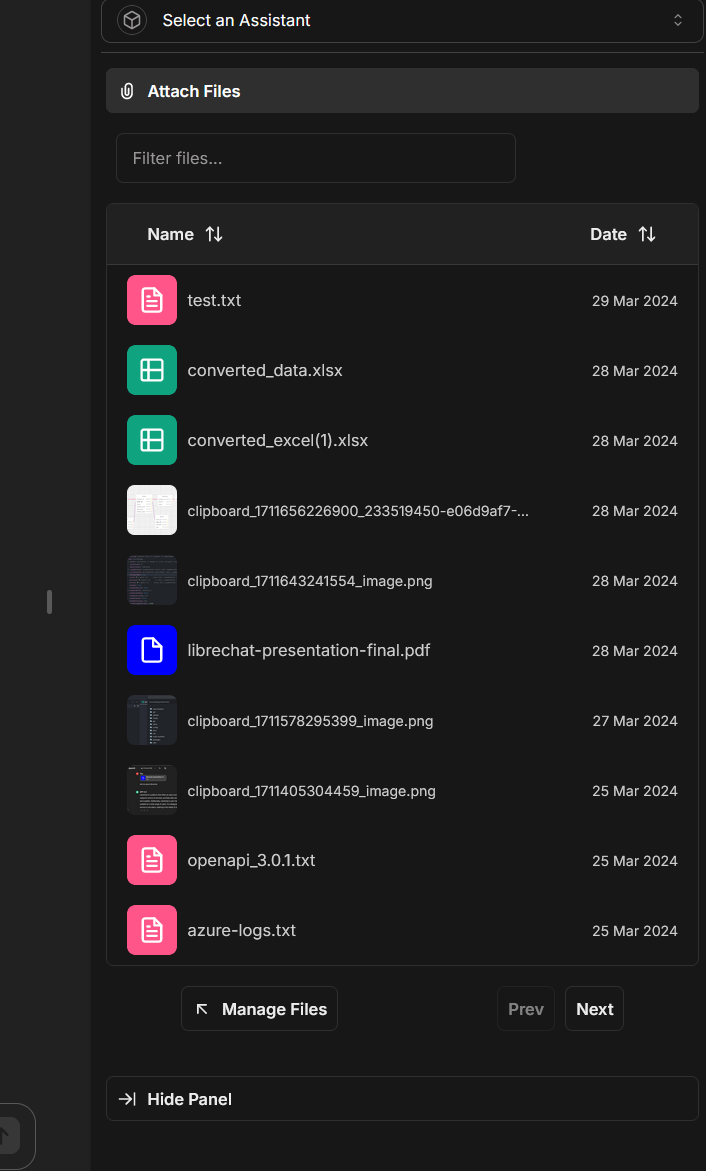
5. You only have to upload a file once to use it multiple times for RAG.
|
|
- You can attach uploaded/indexed files to any new message or conversation using the Side Panel:
|
|
- 
|
|
- Note: The files must be in the "Host" storage, as "OpenAI" files are treated differently and exclusive to Assistants. In other words, they must not have been uploaded when the Assistants endpoint was selected and active. You can view and manage your files by clicking here from the Side Panel.
|
|
- 
|
|
|
|
|
|
## Troubleshooting
|
|
|
|
If you encounter any issues while setting up or using the RAG API, consider the following:
|
|
|
|
- Double-check that all the required environment variables are correctly set in your `.env` file.
|
|
- Ensure that the vector database is properly configured and accessible.
|
|
- Verify that the OpenAI API key or other necessary credentials are valid.
|
|
- Check both the LibreChat and RAG API logs for any error messages or warnings.
|
|
|
|
If the problem persists, please refer to the RAG API documentation or seek assistance from the LibreChat community on GitHub Discussions or Discord.
|