mirror of
https://github.com/langgenius/dify-docs.git
synced 2026-03-27 13:28:32 +07:00

388 lines
17 KiB
Plaintext
388 lines
17 KiB
Plaintext
---
|
|
title: Tool Plugin
|
|
---
|
|
|
|
|
|
|
|
{/*
|
|
CONTRIBUTOR NOTE:
|
|
----------------
|
|
This is a legacy document that is being deprecated.
|
|
Please DO NOT make changes to this version.
|
|
All updates should be directed to the new version at:
|
|
/plugin-dev-en/0222-tool-plugin
|
|
*/}
|
|
|
|
<Card title="This Documentation is Being Deprecated" icon="circle-exclamation" href="/plugin-dev-en/0222-tool-plugin">
|
|
<p>This page is being phased out as part of our documentation reorganization.</p>
|
|
|
|
<p><strong>Click this card</strong> to be redirected to the updated version with the most current information.</p>
|
|
|
|
<p>If you notice any discrepancies or areas needing improvement in the new documentation, please use the "Report an issue" button at the bottom of the page.</p>
|
|
</Card>
|
|
|
|
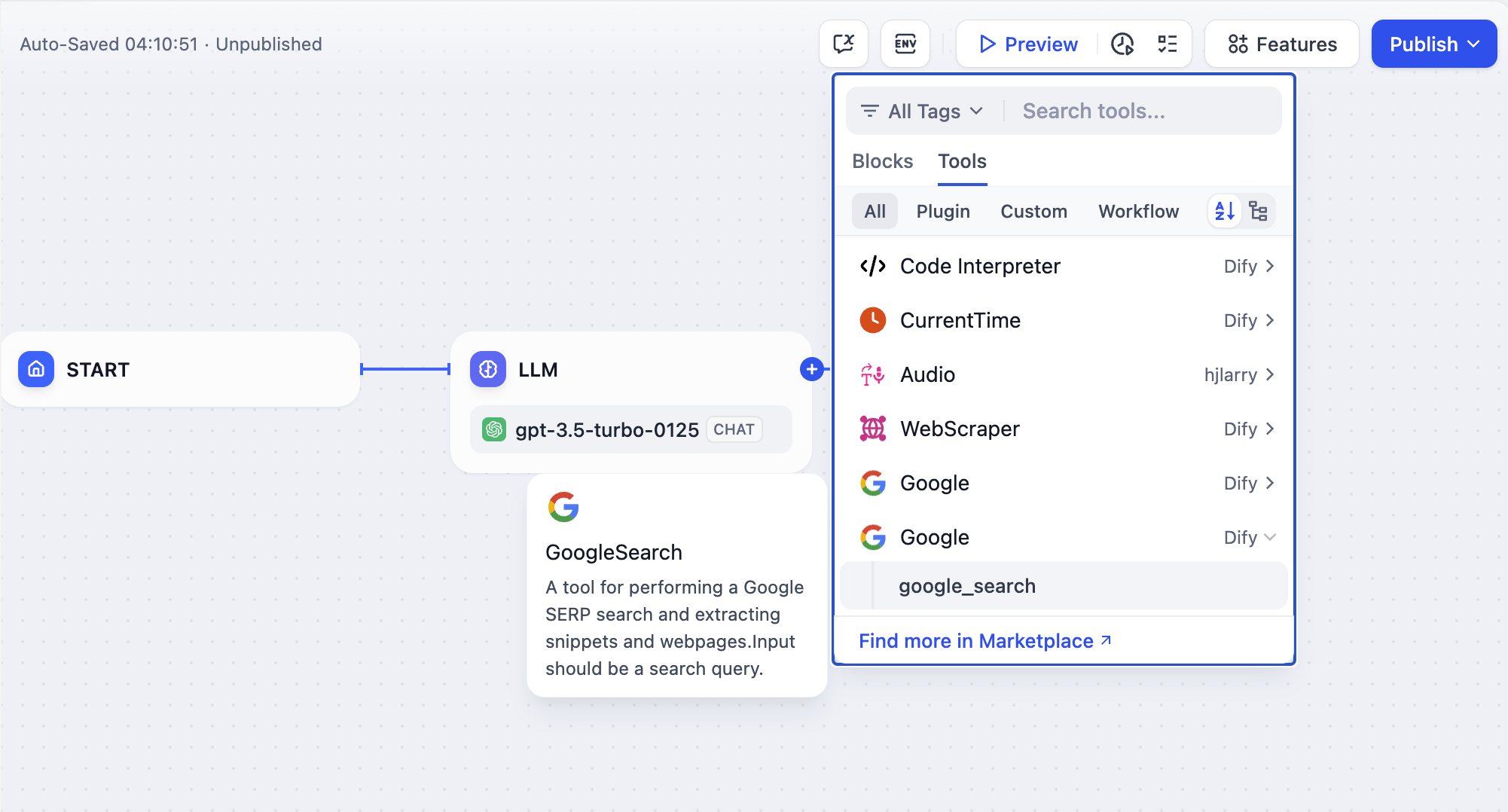
Tool type plugins are external tools that can be referenced by Chatflow / Workflow / Agent application types to enhance the capabilities of Dify applications. For example, adding online search capabilities, image generation capabilities, etc. to an application. Tool Type Plugins provide a complete set of tools and API implementations.
|
|
|
|
|
|
|
|
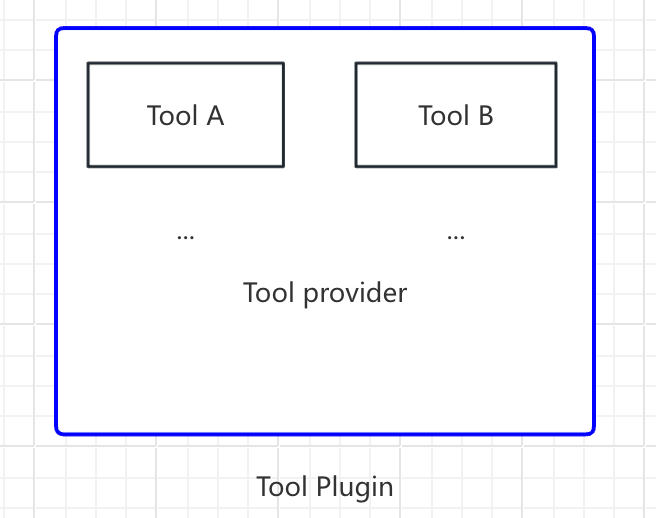
In this article, a "Tool Plugin" refers to a complete project that includes the tool provider file, functional code, and other related components. A tool provider may encompass multiple Tools (which can be understood as additional functionalities offered by a single tool), structured as follows:
|
|
|
|
```
|
|
- Tool provider
|
|
- Tool A
|
|
- Tool B
|
|
```
|
|
|
|
|
|
|
|
This article uses `GoogleSearch` as an example of how to quickly develop a tool type of plugin.
|
|
|
|
### **Prerequisites**
|
|
|
|
* Dify plugin scaffolding tool
|
|
* Python, version ≥ 3.12
|
|
|
|
For detailed instructions on how to prepare scaffolding tools for plugin development, see [Initializing Development Tools](/en/plugins/quick-start/initialize-development-tools).
|
|
|
|
### **Create New Project**
|
|
|
|
Run the CLI tool to create a new dify plugin project:
|
|
|
|
```bash
|
|
./dify-plugin-darwin-arm64 plugin init
|
|
```
|
|
|
|
If you have renamed the binary file to `dify` and copied it to the `/usr/local/bin` path, you can run the following command to create a new plugin project:
|
|
|
|
```bash
|
|
dify plugin init
|
|
```
|
|
|
|
> In the following, the command-line tool `dify` is used. If issues occur, please replace the `dify` command with the appropriate path to your command-line tool.
|
|
|
|
### Select plugin type and template
|
|
|
|
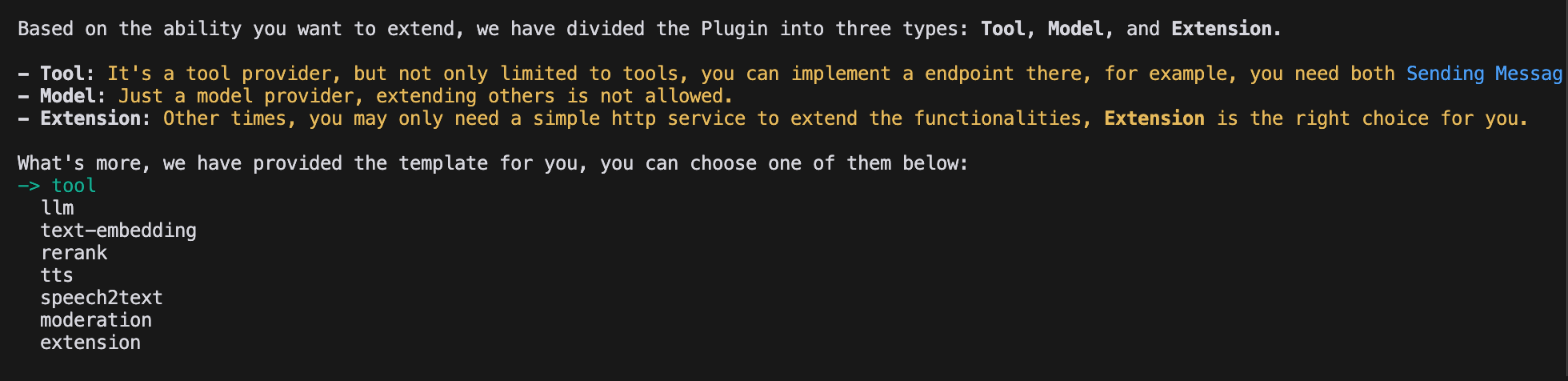
There are three types of plugins: tool, model and extension. All templates within SDK are provided with full code projects. The following part will use the **Tool plugin** template as an example.
|
|
|
|
> If you are already familiar in plugin development, please refer to the [Schema Definition](/en/plugins/schema-definition) to implement various types of plugins.
|
|
|
|
|
|
|
|
#### Configuring Plugin Permissions
|
|
|
|
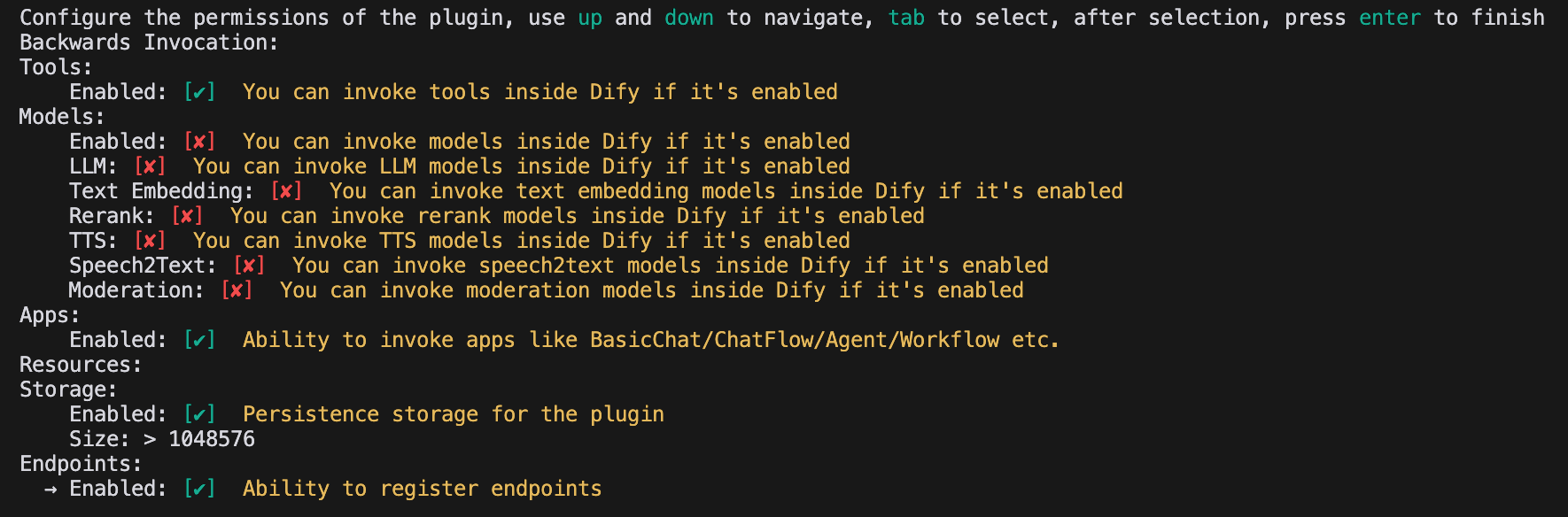
The plugin also needs to read permissions from the Dify platform to connect properly. The following permissions need to be granted for the example tool plugin:
|
|
|
|
* Tools
|
|
* Apps
|
|
* Enable persistent storage Storage, allocate default size storage
|
|
* Allow registration of Endpoint
|
|
|
|
> Use the arrow keys to select permissions within the terminal and the "Tab" button to grant permissions.
|
|
|
|
After checking all the permission items, tap Enter to complete the creation of the plug-in. The system will automatically generate the plug-in project code.
|
|
|
|
|
|
|
|
### Developing Tools Plugins
|
|
|
|
#### 1. Create the tool vendor yaml file
|
|
|
|
The tool vendor file can be understood as the base configuration entry point for a tool type plugin, and is used to provide the necessary authorization information to the tool. This section demonstrates how to fill out that yaml file.
|
|
|
|
Go to the `/provider` path and rename the yaml file in it to `google.yaml`. The `yaml` file will contain information about the tool vendor, including the provider name, icon, author, and other details. This information will be displayed when the plugin is installed.
|
|
|
|
Example:
|
|
|
|
```yaml
|
|
identity:
|
|
author: Your-name
|
|
name: google
|
|
label:
|
|
en_US: Google
|
|
zh_Hans: Google
|
|
description:
|
|
en_US: Google
|
|
zh_Hans: Google
|
|
icon: icon.svg
|
|
tags:
|
|
- search
|
|
```
|
|
|
|
* `identity` contains basic information about the tool provider, including author, name, label, description, icon, and more.
|
|
* The icon needs to be an attachment resource, which needs to be placed in the `_assets` folder in the project root directory.
|
|
* Tags help users quickly find plugins by category, here are all the tags currently supported.
|
|
* ```python
|
|
class ToolLabelEnum(Enum):
|
|
SEARCH = 'search'
|
|
IMAGE = 'image'
|
|
VIDEOS = 'videos'
|
|
WEATHER = 'weather'
|
|
FINANCE = 'finance'
|
|
DESIGN = 'design'
|
|
TRAVEL = 'travel'
|
|
SOCIAL = 'social'
|
|
NEWS = 'news'
|
|
MEDICAL = 'medical'
|
|
PRODUCTIVITY = 'productivity'
|
|
EDUCATION = 'education'
|
|
BUSINESS = 'business'
|
|
ENTERTAINMENT = 'entertainment'
|
|
UTILITIES = 'utilities'
|
|
OTHER = 'other'
|
|
```
|
|
|
|
Make sure that the path to the file is in the `/tools` directory, the full path is below:
|
|
|
|
```yaml
|
|
plugins:
|
|
tools:
|
|
- "google.yaml"
|
|
```
|
|
|
|
Where the `google.yaml` file needs to use its absolute path in the plugin project.
|
|
|
|
* **Completion of third-party service credentials**
|
|
|
|
For ease of development, we have chosen to use the Google Search API provided by a third-party service, SerpApi. SerpApi requires an API Key in order to use it, so you need to add the `credentials_for_provider` field to the `yaml` file.
|
|
|
|
The full code is below:
|
|
|
|
```yaml
|
|
identity:
|
|
author: Dify
|
|
name: google
|
|
label:
|
|
en_US: Google
|
|
zh_Hans: Google
|
|
pt_BR: Google
|
|
description:
|
|
en_US: Google
|
|
zh_Hans: GoogleSearch
|
|
pt_BR: Google
|
|
icon: icon.svg
|
|
tags:
|
|
- search
|
|
credentials_for_provider: #Add credentials_for_provider field
|
|
serpapi_api_key:
|
|
type: secret-input
|
|
required: true
|
|
label:
|
|
en_US: SerpApi API key
|
|
zh_Hans: SerpApi API key
|
|
placeholder:
|
|
en_US: Please input your SerpApi API key
|
|
zh_Hans: 请输入你的 SerpApi API key
|
|
help:
|
|
en_US: Get your SerpApi API key from SerpApi
|
|
zh_Hans: 从 SerpApi 获取您的 SerpApi API key
|
|
url: https://serpapi.com/manage-api-key
|
|
tools:
|
|
- tools/google_search.yaml
|
|
extra:
|
|
python:
|
|
source: google.py
|
|
```
|
|
|
|
* where the `credentials_for_provider` sub-level structure needs to satisfy the [ProviderConfig](/en/plugins/schema-definition/general-specifications#providerconfig) specification.
|
|
* It is necessary to specify which tools are included in this provider. This example only includes a `tools/google_search.yaml` file.
|
|
* For the provider, in addition to defining its basic information, you also need to implement some of its code logic, so you need to specify its implementation logic. In this example, the code file for the function is placed in `google.py`, but instead of implementing it for the time being, you write the code for `google_search` first.
|
|
|
|
#### 2. Fill out the tool yaml file
|
|
|
|
There can be multiple tools under a tool vendor, and each tool needs to be described by a `yaml` file, which contains basic information about the tool, its parameters, its output, and so on.
|
|
|
|
Still using the `GoogleSearch` tool as an example, you can create a new `google_search.yaml` file in the `/tools` folder.
|
|
|
|
```yaml
|
|
identity:
|
|
name: google_search
|
|
author: Dify
|
|
label:
|
|
en_US: GoogleSearch
|
|
zh_Hans: Google Search
|
|
pt_BR: GoogleSearch
|
|
description:
|
|
human:
|
|
en_US: A tool for performing a Google SERP search and extracting snippets and webpages.Input should be a search query.
|
|
zh_Hans: A tool for performing Google SERP search and extracting snippets and webpages. Input should be a search query.
|
|
pt_BR: A tool for performing a Google SERP search and extracting snippets and webpages.Input should be a search query.
|
|
llm: A tool for performing a Google SERP search and extracting snippets and webpages.Input should be a search query.
|
|
parameters:
|
|
- name: query
|
|
type: string
|
|
required: true
|
|
label:
|
|
en_US: Query string
|
|
zh_Hans: Query string
|
|
pt_BR: Query string
|
|
human_description:
|
|
en_US: used for searching
|
|
zh_Hans: used for searching webpage content
|
|
pt_BR: used for searching
|
|
llm_description: key words for searching
|
|
form: llm
|
|
extra:
|
|
python:
|
|
source: tools/google_search.py
|
|
```
|
|
|
|
* `identity` contains the tool's basic information, including name, author, labels, description, etc.
|
|
* `parameters` parameter list
|
|
* `name` (required) parameter name, must be unique, cannot duplicate other parameter names
|
|
* `type` (required) parameter type, currently supports nine types: `string`, `number`, `boolean`, `select`, `secret-input`, `file`, `files`, `model-selector`, `app-selector`, corresponding to string, number, boolean, dropdown menu, encrypted input field, file, file set, model selection, and application selection. For sensitive information, please use `secret-input` type
|
|
* `label` (required) parameter label, used for frontend display
|
|
* `form` (required) form type, currently supports two types: `llm` and `form`
|
|
* In Agent applications, `llm` means the parameter is inferred by LLM, `form` means parameters that can be preset to use the tool
|
|
* In workflow applications, both `llm` and `form` need to be filled in the frontend, but `llm` parameters will serve as input variables for tool nodes
|
|
* `required` whether the field is required
|
|
* In `llm` mode, if a parameter is required, the Agent must infer this parameter
|
|
* In `form` mode, if a parameter is required, users must fill in this parameter in the frontend before starting the conversation
|
|
* `options` parameter options
|
|
* In `llm` mode, Dify will pass all options to LLM, which can make inferences based on these options
|
|
* In `form` mode, when `type` is `select`, the frontend will display these options
|
|
* `default` default value
|
|
* `min` minimum value, can be set when parameter type is `number`
|
|
* `max` maximum value, can be set when parameter type is `number`
|
|
* `human_description` introduction displayed in frontend, supports multiple languages
|
|
* `placeholder` prompt text for input fields, can be set when form type is `form` and parameter type is `string`, `number`, or `secret-input`, supports multiple languages
|
|
* `llm_description` introduction passed to LLM. To help LLM better understand this parameter, please write as detailed information as possible about this parameter here so that LLM can understand it
|
|
|
|
#### 3. Preparation of tool codes
|
|
|
|
After filling in the configuration information of the tool, you can start writing the functional code of the tool to realize the logical purpose of the tool. Create `google_search.py` in the `/tools` directory with the following contents.
|
|
|
|
```python
|
|
from collections.abc import Generator
|
|
from typing import Any
|
|
|
|
import requests
|
|
|
|
from dify_plugin import Tool
|
|
from dify_plugin.entities.tool import ToolInvokeMessage
|
|
|
|
SERP_API_URL = "https://serpapi.com/search"
|
|
|
|
class GoogleSearchTool(Tool):
|
|
def _parse_response(self, response: dict) -> dict:
|
|
result = {}
|
|
if "knowledge_graph" in response:
|
|
result["title"] = response["knowledge_graph"].get("title", "")
|
|
result["description"] = response["knowledge_graph"].get("description", "")
|
|
if "organic_results" in response:
|
|
result["organic_results"] = [
|
|
{
|
|
"title": item.get("title", ""),
|
|
"link": item.get("link", ""),
|
|
"snippet": item.get("snippet", ""),
|
|
}
|
|
for item in response["organic_results"]
|
|
]
|
|
return result
|
|
|
|
def _invoke(self, tool_parameters: dict[str, Any]) -> Generator[ToolInvokeMessage]:
|
|
params = {
|
|
"api_key": self.runtime.credentials["serpapi_api_key"],
|
|
"q": tool_parameters["query"],
|
|
"engine": "google",
|
|
"google_domain": "google.com",
|
|
"gl": "us",
|
|
"hl": "en",
|
|
}
|
|
|
|
response = requests.get(url=SERP_API_URL, params=params, timeout=5)
|
|
response.raise_for_status()
|
|
valuable_res = self._parse_response(response.json())
|
|
|
|
yield self.create_json_message(valuable_res)
|
|
```
|
|
|
|
In this example, we simply request the `serpapi` and use `self.create_json_message` to return a string of `json` formatted data. For more information on the types of data returned, you can refer to the [tool](/en/plugins/schema-definition/tool) documentation.
|
|
|
|
#### 4. Completion of tool vendor codes
|
|
|
|
Finally, you need to create a vendor code implementation code that will be used to implement the vendor's credential validation logic. If the credential validation fails, the `ToolProviderCredentialValidationError` exception will be thrown. After successful validation, the `google_search` tool service will be requested correctly.
|
|
|
|
Create a `google.py` file in the `/provider` directory with the following code:
|
|
|
|
```python
|
|
from typing import Any
|
|
|
|
from dify_plugin import ToolProvider
|
|
from dify_plugin.errors.tool import ToolProviderCredentialValidationError
|
|
from tools.google_search import GoogleSearchTool
|
|
|
|
class GoogleProvider(ToolProvider):
|
|
def _validate_credentials(self, credentials: dict[str, Any]) -> None:
|
|
try:
|
|
for _ in GoogleSearchTool.from_credentials(credentials).invoke(
|
|
tool_parameters={"query": "test", "result_type": "link"},
|
|
):
|
|
pass
|
|
except Exception as e:
|
|
raise ToolProviderCredentialValidationError(str(e))
|
|
```
|
|
|
|
### Debugging Plugins
|
|
|
|
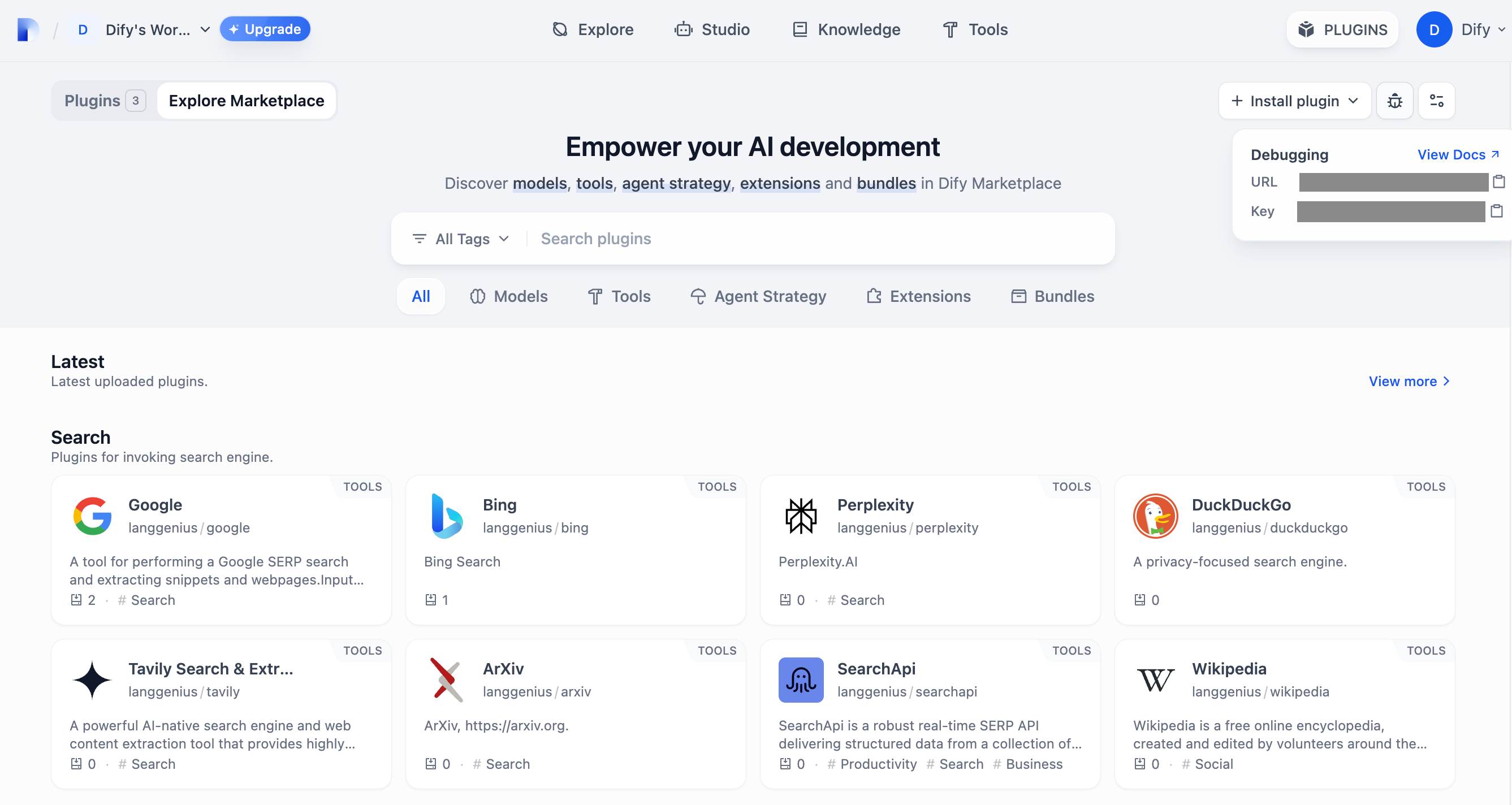
Dify provides remote debugging method, go to "Plugin Management" page to get the debugging key and remote server address.
|
|
|
|
|
|
|
|
Go back to the plugin project, copy the `.env.example` file and rename it to .env. Fill it with the remote server address and debugging key.
|
|
|
|
The `.env` file:
|
|
|
|
```bash
|
|
INSTALL_METHOD=remote
|
|
REMOTE_INSTALL_URL=debug.dify.ai:5003
|
|
REMOTE_INSTALL_KEY=********-****-****-****-************
|
|
```
|
|
|
|
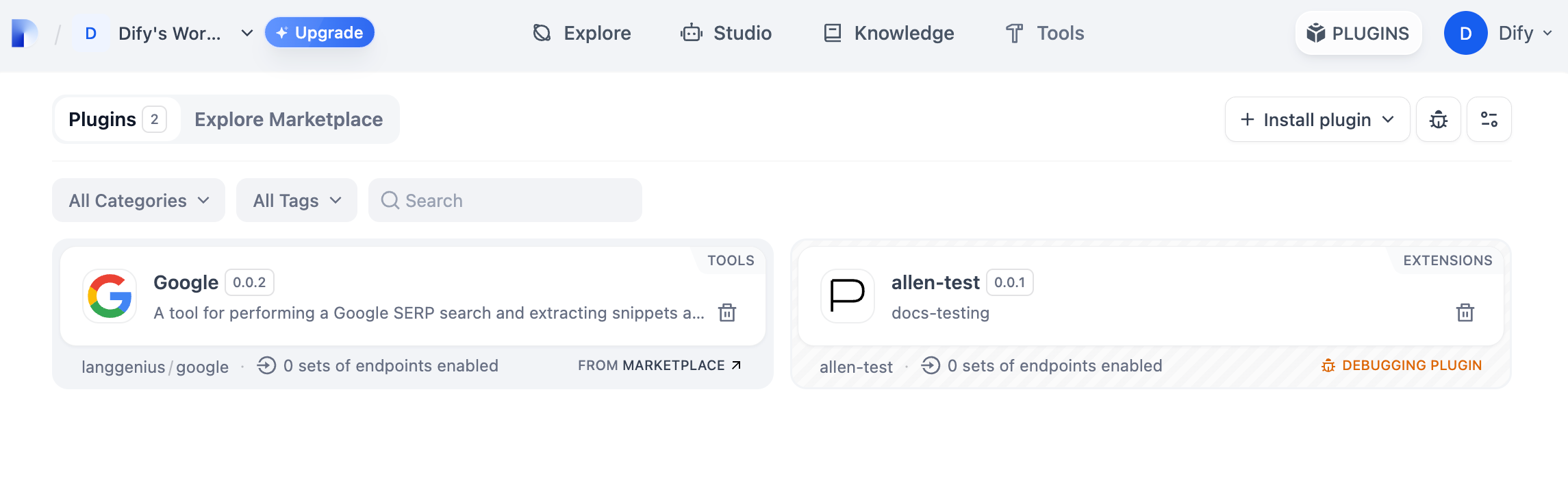
Run the `python -m main` command to launch the plugin. You can see on the plugin page that the plugin has been installed into Workspace. Other team members can also access the plugin.
|
|
|
|
|
|
|
|
### Packing Plugin
|
|
|
|
After confirming that the plugin works properly, you can package and name the plugin with the following command line tool. After running it you can find the `google.difypkg` file in the current folder, which is the final plugin package.
|
|
|
|
```bash
|
|
# Replace ./google with your actual plugin project path.
|
|
|
|
dify plugin package ./google
|
|
```
|
|
|
|
Congratulations, you have completed the complete development, debugging and packaging process of a tool type plugin!
|
|
|
|
### Publishing Plugins
|
|
|
|
You can now publish your plugin by uploading it to the [Dify Plugins code repository](https://github.com/langgenius/dify-plugins)! Before uploading, make sure your plugin follows the [plugin release guide](/en/plugins/publish-plugins/publish-to-dify-marketplace). Once approved, the code will be merged into the master branch and automatically live in the [Dify Marketplace](https://marketplace.dify.ai/).
|
|
|
|
#### Exploring More
|
|
|
|
**Quick Start:**
|
|
|
|
* [Develop Extension Type Plugin](/en/plugins/quick-start/develop-plugins/extension-plugin)
|
|
* [Develop Model Type Plugin](/en/plugins/quick-start/develop-plugins/model-plugin)
|
|
* [Bundle Type Plugin: Package Multiple Plugins](/en/plugins/quick-start/develop-plugins/bundle)
|
|
|
|
**Plugins Specification Definition Documentaiton:**
|
|
|
|
* [Minifest](/en/plugins/schema-definition/manifest)
|
|
* [Endpoint](/en/plugins/schema-definition/endpoint)
|
|
* [Reverse Invocation of the Dify Service](/en/plugins/schema-definition/reverse-invocation-of-the-dify-service)
|
|
* [Tools](/en/guides/tools)
|
|
* [Models](/en/plugins/schema-definition/model/model-schema)
|
|
* [Extend Agent Strategy](/en/plugins/schema-definition/agent)
|
|
|
|
{/*
|
|
Contributing Section
|
|
DO NOT edit this section!
|
|
It will be automatically generated by the script.
|
|
*/}
|
|
|
|
---
|
|
|
|
[Edit this page](https://github.com/langgenius/dify-docs/edit/main/en/plugins/quick-start/develop-plugins/tool-plugin.mdx) | [Report an issue](https://github.com/langgenius/dify-docs/issues/new?title=Documentation%20Issue%3A%20plu&body=%23%23%20Issue%20Description%0A%3C%21--%20Please%20briefly%20describe%20the%20issue%20you%20found%20--%3E%0A%0A%23%23%20Page%20Link%0Ahttps%3A%2F%2Fgithub.com%2Flanggenius%2Fdify-docs%2Fblob%2Fmain%2Fen/plugins/quick-start/develop-plugins%2Ftool-plugin.mdx%0A%0A%23%23%20Suggested%20Changes%0A%3C%21--%20If%20you%20have%20specific%20suggestions%20for%20changes%2C%20please%20describe%20them%20here%20--%3E%0A%0A%3C%21--%20Thank%20you%20for%20helping%20improve%20our%20documentation%21%20--%3E)
|
|
|