mirror of
https://github.com/langgenius/dify-docs.git
synced 2026-03-27 13:28:32 +07:00

409 lines
12 KiB
Plaintext
409 lines
12 KiB
Plaintext
---
|
||
title: Metadata
|
||
---
|
||
|
||
## What is Metadata?
|
||
|
||
### Overview
|
||
|
||
Metadata is information that describes your data - essentially "data about data". Just as a book has a table of contents to help you understand its structure, metadata provides context about your data's content, origin, purpose, etc., making it easier for you to find and manage information in your knowledge base.
|
||
|
||
This guide aims to help you understand metadata and effectively manage your knowledge base.
|
||
|
||
### Core Concepts
|
||
|
||
- **Field:** The label of a metadata field (e.g., "author", "language").
|
||
|
||
- **Value:** The information stored in a metadata field (e.g., "Jack", "English").
|
||
|
||
<img
|
||
src="https://assets-docs.dify.ai/2025/03/b6a197aa21ab92db93869fcbfa156b62.png"
|
||
width="300"
|
||
alt="field_name_and_value"
|
||
/>
|
||
|
||
- **Value Count:** The number of values contained in a metadata field,including duplicates. (e.g., "3").
|
||
|
||
<img
|
||
src="https://assets-docs.dify.ai/2025/03/330f26e90438cf50167c4cb6ce30e458.png"
|
||
width="300"
|
||
className="mx-auto"
|
||
alt="metadata_field"
|
||
/>
|
||
|
||
- **Value Type:** The type of value a field can contain.
|
||
- Dify supports three value types:
|
||
- String: For text-based information
|
||
- Number: For numerical data
|
||
- Time: For dates/timestamps
|
||
|
||
<img
|
||
src="https://assets-docs.dify.ai/2025/03/f6adc7418869334805361535c8cd6874.png"
|
||
width="300"
|
||
alt="value_type"
|
||
/>
|
||
|
||
## How to Manage My Metadata?
|
||
|
||
### Manage Metadata Fields in the Knowledge Base
|
||
|
||
You can create, modify, and delete metadata fields in the knowledge base.
|
||
|
||
> Any changes you make to metadata fields here affect your knowledge base globally.
|
||
|
||
#### Get Started with the Metadata Panel
|
||
|
||
**Access the Metadata Panel**
|
||
|
||
To access the Metadata Panel, go to **Knowledge Base** page and click **Metadata**.
|
||
|
||

|
||
|
||

|
||
|
||
**Built-in vs Custom Metadata**
|
||
|
||
<table>
|
||
<thead>
|
||
<tr>
|
||
<th> </th>
|
||
<th>Built-in Metadata</th>
|
||
<th>Custom Metadata</th>
|
||
</tr>
|
||
</thead>
|
||
<tbody>
|
||
<tr>
|
||
<td>Location</td>
|
||
<td>Lower section of the Metadata panel</td>
|
||
<td>Upper section of the Metadata panel</td>
|
||
</tr>
|
||
<tr>
|
||
<td>Activation</td>
|
||
<td>Disabled by default; requires manual activation</td>
|
||
<td>Add as needed</td>
|
||
</tr>
|
||
<tr>
|
||
<td>Generation</td>
|
||
<td>System automatically extracts and generates field values</td>
|
||
<td>User-defined and manually added</td>
|
||
</tr>
|
||
<tr>
|
||
<td>Editing</td>
|
||
<td>Fields and values cannot be modified once generated</td>
|
||
<td>Fields and values can be edited or deleted</td>
|
||
</tr>
|
||
<tr>
|
||
<td>Scope</td>
|
||
<td>Applies to all existing and new documents when enabled</td>
|
||
<td>Stored in metadata list; requires manual assignment to documents</td>
|
||
</tr>
|
||
<tr>
|
||
<td>Fields</td>
|
||
<td>
|
||
System-defined fields include:
|
||
<ul>
|
||
<li>document_name (string)</li>
|
||
<li>uploader (string)</li>
|
||
<li>upload_date (time)</li>
|
||
<li>last_update_date (time)</li>
|
||
<li>source (string)</li>
|
||
</ul>
|
||
</td>
|
||
<td>No default fields; all fields must be manually created</td>
|
||
</tr>
|
||
<tr>
|
||
<td>Value Types</td>
|
||
<td>
|
||
<ul>
|
||
<li>String: For text values</li>
|
||
<li>Number: For numerical values</li>
|
||
<li>Time: For dates and timestamps</li>
|
||
</ul>
|
||
</td>
|
||
<td>
|
||
<ul>
|
||
<li>String: For text values</li>
|
||
<li>Number: For numerical values</li>
|
||
<li>Time: For dates and timestamps</li>
|
||
</ul>
|
||
</td>
|
||
</tr>
|
||
</tbody>
|
||
</table>
|
||
|
||
#### Create New Metadata Fields
|
||
|
||
To create a new metadata field:
|
||
|
||
1. Click **+Add Metadata** to open the **New Metadata** dialog.
|
||
|
||

|
||
|
||
2. Choose the value type.
|
||
|
||
3. Name the field.
|
||
|
||
> Naming rules: Use lowercase letters, numbers, and underscores only.
|
||
|
||
<img
|
||
src="https://assets-docs.dify.ai/2025/03/f6adc7418869334805361535c8cd6874.png"
|
||
width="300"
|
||
alt="value_type"
|
||
/>
|
||
|
||
4. Click **Save** to apply changes.
|
||
|
||

|
||
|
||
#### Edit Metadata Fields
|
||
|
||
To edit a metadata field:
|
||
|
||
1. Click the edit icon next to a field to open the **Rename** dialog.
|
||
|
||

|
||
|
||
2. Enter the new name in the **Name** field.
|
||
|
||
> Note: You can only modify the field name, not the value type.
|
||
|
||
<img
|
||
src="https://assets-docs.dify.ai/2025/03/2f814f725df9aeb1a0048e51d736d969.png"
|
||
width="350"
|
||
alt="rename_field_2"
|
||
/>
|
||
|
||
3. Click **Save** to apply changes.
|
||
|
||
> Note: Field changes update across all related documents in your knowledge base.
|
||
|
||

|
||
|
||
#### Delete Metadata Fields
|
||
|
||
To delete a metadata field, click the delete icon next to a field to delete it.
|
||
|
||
> Note: Deleting a field deletes it and all its values from all documents in your knowledge base.
|
||
|
||

|
||
|
||
### Edit Metadata
|
||
|
||
#### Bulk Edit Metadata in the Metadata Editor
|
||
|
||
You can edit metadata in bulk in the knowledge base.
|
||
|
||
**Access the Metadata Editor**
|
||
|
||
To access the Metadata Editor:
|
||
|
||
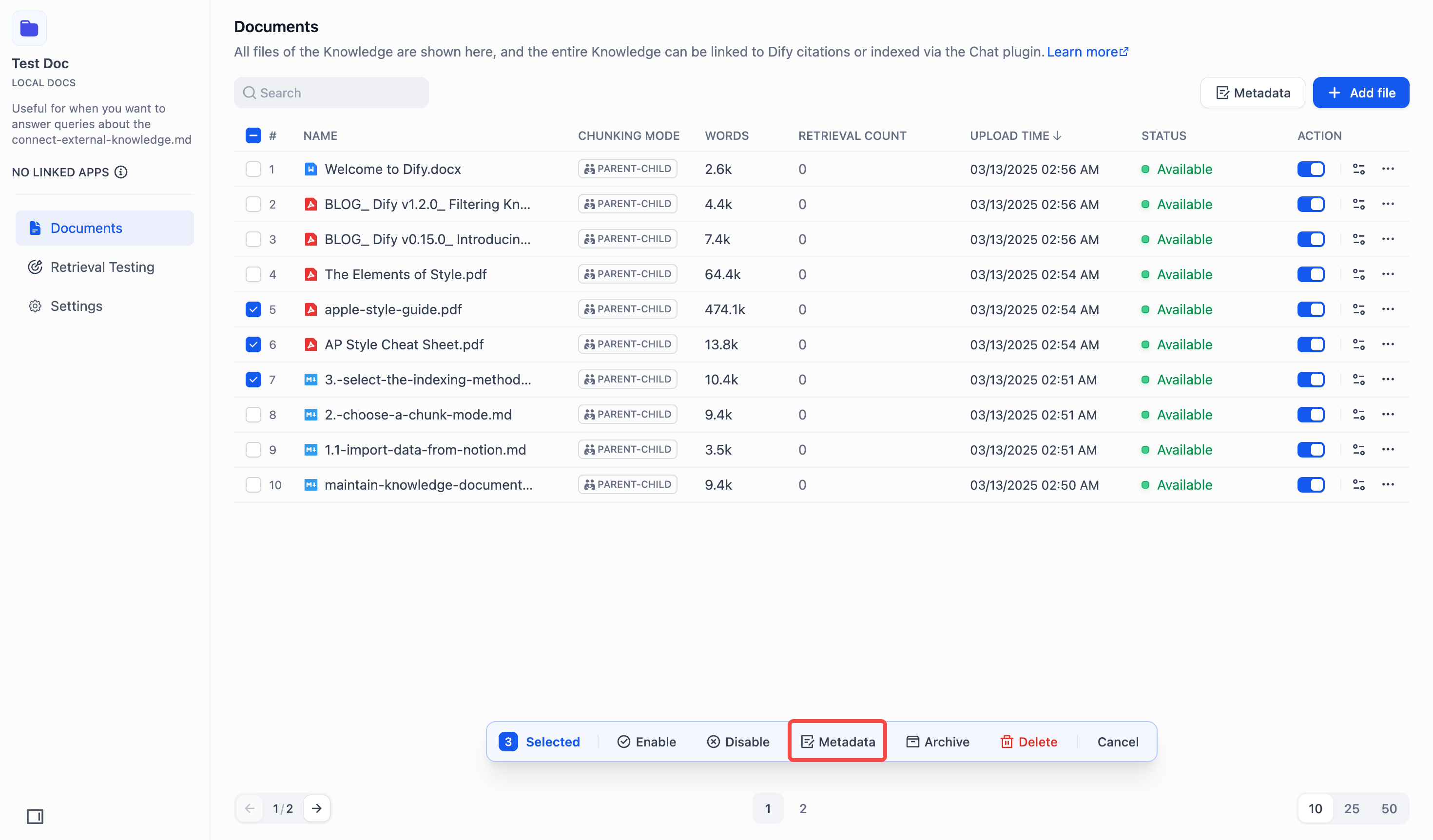
1. In the knowledge base, select documents using the checkboxes on the left.
|
||
|
||
|
||
|
||
2. Click **Metadata** in the bottom action bar to open the Metadata Editor.
|
||
|
||

|
||
|
||
**Bulk Add Metadata**
|
||
|
||
To add metadata in bulk:
|
||
|
||
1. Click **+Add Metadata** in the editor to:
|
||
|
||
<img
|
||
src="https://assets-docs.dify.ai/2025/03/d4e4f87447c3e445d5b7507df1126c7b.png"
|
||
width="400"
|
||
alt="add_metadata"
|
||
/>
|
||
|
||
- Add existing fields from the dropdown or from the search box.
|
||
|
||
<img
|
||
src="https://assets-docs.dify.ai/2025/03/ea9aab2c4071bf2ec75409b05725ac1f.png"
|
||
width="400"
|
||
alt="existing_field"
|
||
/>
|
||
|
||
- Create new fields via **+New Metadata**.
|
||
|
||
> New fields are automatically added to the knowledge base.
|
||
|
||
<img
|
||
src="https://assets-docs.dify.ai/2025/03/e32211f56421f61b788943ba40c6959e.png"
|
||
width="400"
|
||
alt="new_metadata_field"
|
||
/>
|
||
|
||
- Access the Metadata Panel to manage metadata fields via **Manage**.
|
||
|
||
<img
|
||
src="https://assets-docs.dify.ai/2025/03/82561edeb747b100c5295483c6238ffa.png"
|
||
width="400"
|
||
alt="manage_field"
|
||
/>
|
||
|
||
2. *(Optional)* Enter values for new fields.
|
||
|
||
<img
|
||
src="https://assets-docs.dify.ai/2025/03/aabfe789f607a1db9062beb493213376.png"
|
||
width="400"
|
||
alt="value_for_field"
|
||
/>
|
||
|
||
> The date picker is for time-type fields.
|
||
|
||
<img
|
||
src="https://assets-docs.dify.ai/2025/03/65df828e605ebfb4947fccce189520a3.png"
|
||
width="440"
|
||
alt="date_picker"
|
||
/>
|
||
|
||
3. Click **Save** to apply changes.
|
||
|
||
**Bulk Update Metadata**
|
||
|
||
To update metadata in bulk:
|
||
|
||
1. In the editor:
|
||
|
||
- **Add Values:** Type directly in the field boxes.
|
||
|
||
- **Reset Values:** Click the blue dot that appears on hover.
|
||
|
||
<img
|
||
src="https://assets-docs.dify.ai/2025/03/01c0cde5a6eafa48e1c6e5438fc2fa6b.png"
|
||
width="400"
|
||
alt="reset_values"
|
||
/>
|
||
|
||
- **Delete Values:** Clear the field or delete the **Multiple Value** card.
|
||
|
||
<img
|
||
src="https://assets-docs.dify.ai/2025/03/5c4323095644d2658881b783246914f1.png"
|
||
width="400"
|
||
alt="multiple_values"
|
||
/>
|
||
|
||
- **Delete fields:** Click the delete icon (fields appear struck through and grayed out).
|
||
|
||
> Note: This only deletes the field from this document, not from your knowledge base.
|
||
|
||
<img
|
||
src="https://assets-docs.dify.ai/2025/03/1b0318b898f951e307e3dc8cdc2f48d3.png"
|
||
width="400"
|
||
alt="delete_fields"
|
||
/>
|
||
|
||
2. Click **Save** to apply changes.
|
||
|
||
**Set Update Scope**
|
||
|
||
Use **Apply to All Documents** to control changes:
|
||
|
||
- **Unchecked (Default)**: Updates only documents that already have the field.
|
||
|
||
- **Checked**: Adds or updates fields across all selected documents.
|
||
|
||
<img
|
||
src="https://assets-docs.dify.ai/2025/03/4550c68960802c24271492b63a39ad05.png"
|
||
width="400"
|
||
alt="apply_all_changes"
|
||
/>
|
||
|
||
#### Edit Metadata on the Document Details Page
|
||
|
||
You can edit a single document's metadata on its details page.
|
||
|
||
**Access Metadata Edit Mode**
|
||
|
||
To edit a single document's metadata:
|
||
|
||
On the document details page, click **Start labeling** to begin editing.
|
||
|
||

|
||
|
||

|
||
|
||
**Add Metadata**
|
||
|
||
To add a single document's metadata fields and values:
|
||
|
||
1. Click **+Add Metadata** to:
|
||

|
||
|
||
- Create new fields via **+New Metadata**.
|
||
|
||
> New fields are automatically added to the knowledge base.
|
||
|
||

|
||
|
||
- Add existing fields from the dropdown or from the search box.
|
||
|
||

|
||
|
||
- Access the Metadata Panel via **Manage**.
|
||
|
||

|
||
|
||
2. *(Optional)* Enter values for new fields.
|
||
|
||

|
||
|
||
3. Click **Save** to apply changes.
|
||
|
||
**Edit Metadata**
|
||
|
||
To update a single document's metadata fields and values:
|
||
|
||
1. Click **Edit** in the top right to begin editing.
|
||
|
||

|
||
|
||
2. Edit metadata:
|
||
- **Update Values:** Type directly in value fields or delete it.
|
||
|
||
> Note: You can only modify the value, not the value name.
|
||
|
||
- **Delete Fields:** Click the delete icon.
|
||
|
||
> Note: This only deletes the field from this document, not from your knowledge base.
|
||
|
||

|
||
|
||
3. Click **Save** to apply changes.
|
||
|
||
## How to Filter Documents with Metadata?
|
||
|
||
See **Metadata Filtering** in *[Integrate Knowledge Base within Application](https://docs.dify.ai/guides/knowledge-base/integrate-knowledge-within-application)*.
|
||
|
||
## API Documentation
|
||
|
||
See *[Maintaining Dataset via API](https://docs.dify.ai/guides/knowledge-base/knowledge-and-documents-maintenance/maintain-dataset-via-api)*.
|
||
|
||
## FAQ
|
||
|
||
- **What can I do with metadata?**
|
||
|
||
- Find information faster with smart filtering.
|
||
|
||
- Control access to sensitive content.
|
||
|
||
- Organize data more effectively.
|
||
|
||
- Automate workflows based on metadata rules.
|
||
|
||
- **Fields vs Values: What is the difference?**
|
||
|
||
| | Definition | Characteristics | Examples |
|
||
| --- | --- | --- | --- |
|
||
| Metadata Fields in the Metadata Panel | System-defined attributes that describe document properties | Global fields accessible across all documents in the knowledge base | Author, Type, Date, etc. |
|
||
| Metadata Value on a document's detail page | Custom metadata tagged according to individual document requirements | Unique metadata values assigned based on document content and context | The "Author" field in Document A is set to "Mary" value, while in Document B it is set to "John" value. |
|
||
|
||
- **How do different delete options work?**
|
||
|
||
| Action | Steps | Impact | Outcome |
|
||
| --- | --- | --- | --- |
|
||
| Delete field in the Metadata Panel | In the Metadata Panel, click delete icon next to field | Global - affects all documents | Field and all values permanently deleted from the knowledge base |
|
||
| Delete field in the Metadata Editor | In the Metadata Editor, click delete icon next to field | Selected documents only | Field deleted from selected documents; remains in the knowledge base |
|
||
| Delete field on the document detail page | In the Edit Mode, click delete icon next to field | Current document only | Field deleted from current document; remains in the knowledge base | |