mirror of
https://github.com/langgenius/dify-docs.git
synced 2026-04-05 14:58:37 +07:00

268 lines
7.7 KiB
Plaintext
268 lines
7.7 KiB
Plaintext
---
|
|
title: Version Control
|
|
---
|
|
|
|
This article explains how to manage versions in Dify's Chatflow and Workflow.
|
|
|
|
## Overview
|
|
|
|
**Version Control Panel** allows you to track changes, publish updates, and restore previous versions of your applications.
|
|
|
|
## Key Concepts
|
|
|
|
- **Current Draft**: Your working version where you make changes.
|
|
|
|
<img
|
|
src="https://assets-docs.dify.ai/2025/03/38296a597c0ca31b5fb70be2234f2363.png"
|
|
width="400"
|
|
className="mx-auto"
|
|
alt="Current draft"
|
|
/>
|
|
|
|
- **Published Version**: Any version released to production.
|
|
|
|
- **Latest Version**: The current production version.
|
|
|
|
<img
|
|
src="https://assets-docs.dify.ai/2025/03/e4c06a0817c30cf9e8893487c889cb02.png"
|
|
width="350"
|
|
className="mx-auto"
|
|
alt="Latest version"
|
|
/>
|
|
|
|
- **Previous Version**: Any older published version.
|
|
|
|
<img
|
|
src="https://assets-docs.dify.ai/2025/03/4cd05033b93d84b53496f3d02e88601f.png"
|
|
width="200"
|
|
className="mx-auto"
|
|
alt="Prevous version"
|
|
/>
|
|
|
|
- **Restore**: Return to any earlier version of your application.
|
|
|
|
<img
|
|
src="https://assets-docs.dify.ai/2025/03/607a69b5355886b9ae8d23a08e818e35.jpg"
|
|
width="200"
|
|
className="mx-auto"
|
|
alt="Restore feature"
|
|
/>
|
|
|
|
## Features
|
|
|
|
- **View all versions**: Access and review details of all published versions.
|
|
|
|
- **Find specific versions**: Use filters to find a specific version.
|
|
|
|
- **Publish new versions**: Release new application versions with custom names and release notes.
|
|
|
|
- **Edit published versions**: Edit the title and release notes of a published version.
|
|
|
|
- **Delete previous versions**: Remove outdated versions to keep the list organized.
|
|
|
|
- **Restore published versions**: Load a published version into drafts for modifications.
|
|
|
|
## How to View All Versions
|
|
|
|
To view all versions:
|
|
|
|
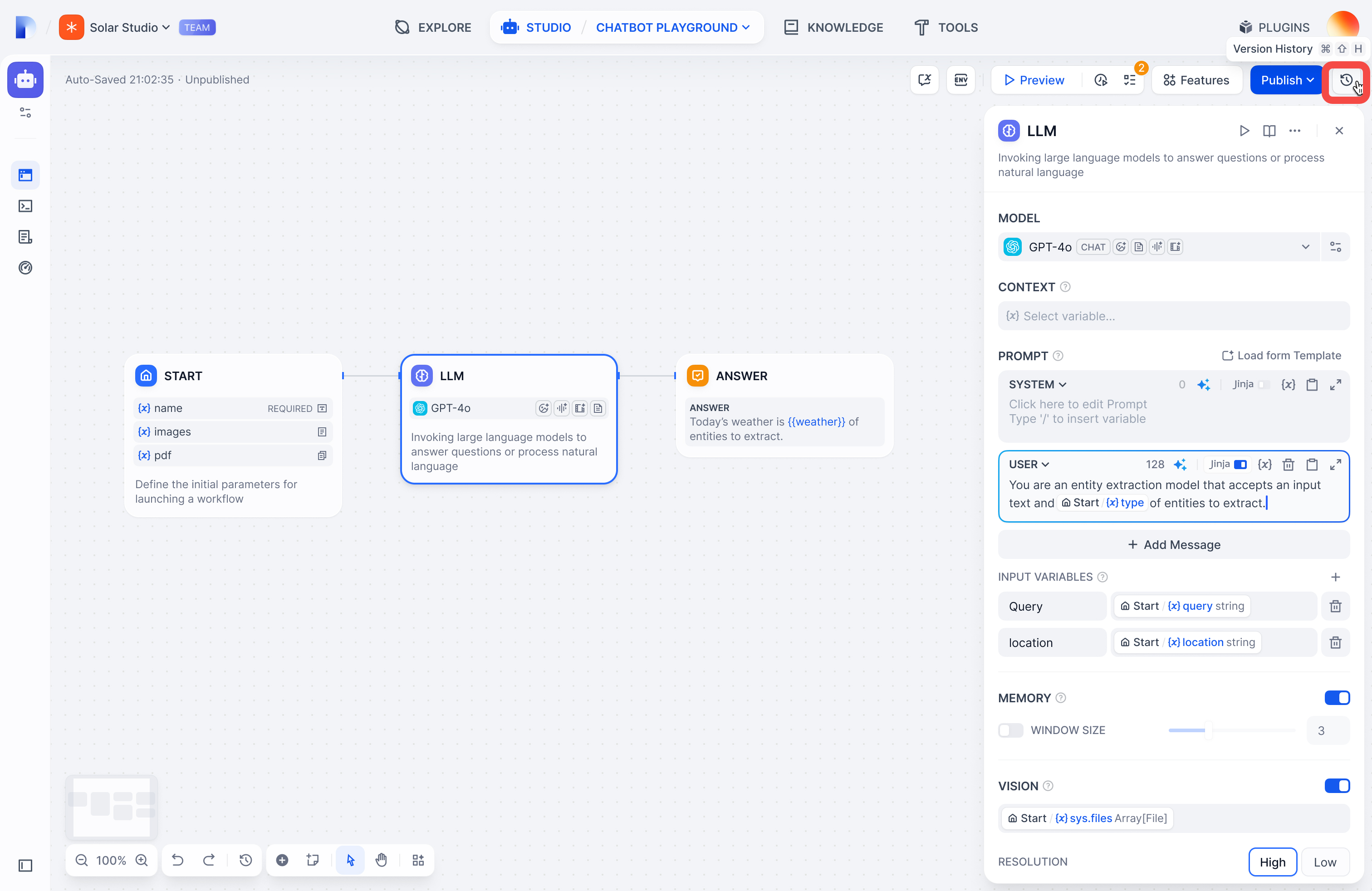
1. Click the history icon to enter the Version Control Panel.
|
|
|
|
|
|
|
|
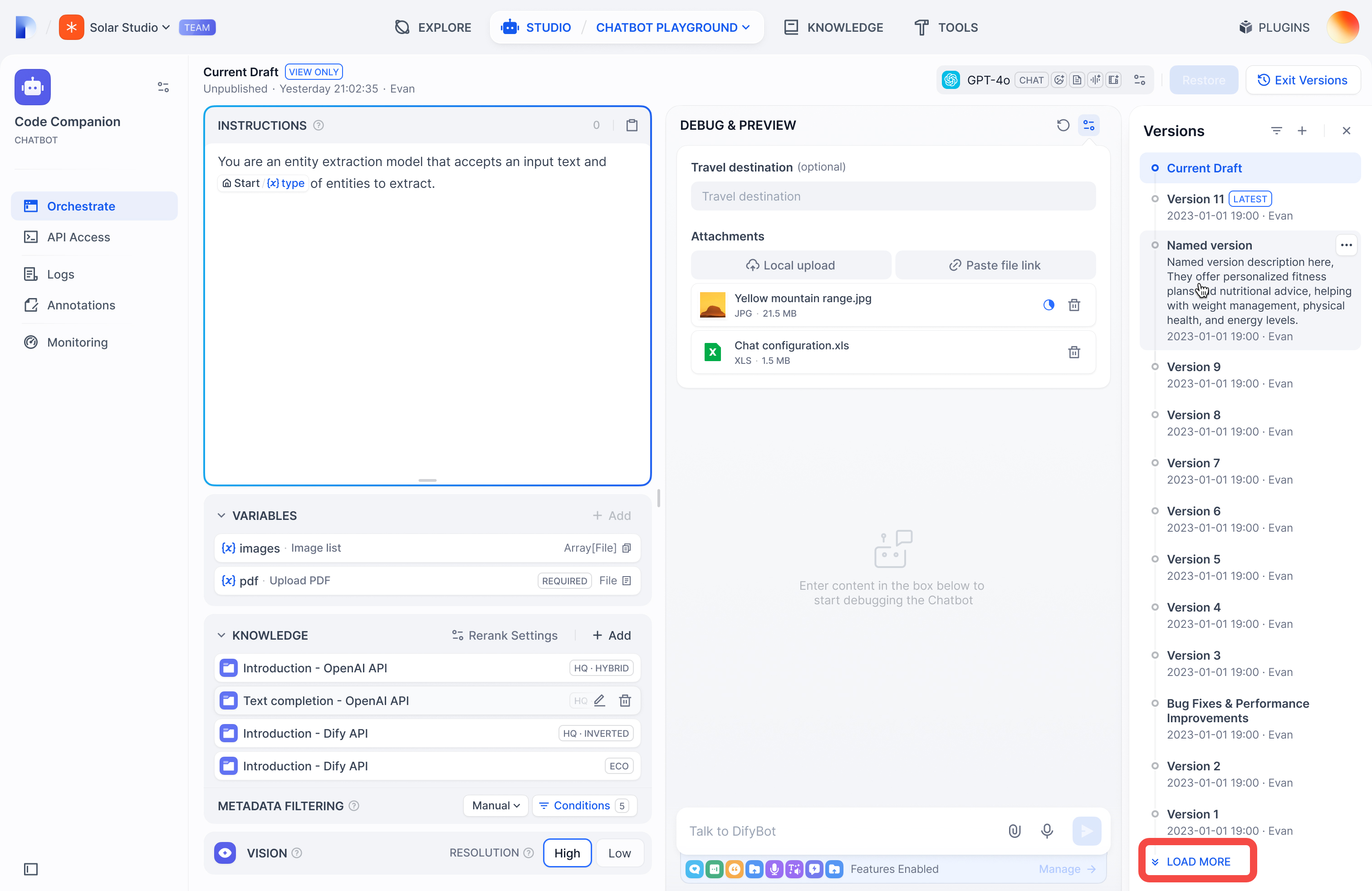
2. View versions in chronological order with titles, release notes, publish dates, and publishers.
|
|
|
|
3. *(Optional)* Click **Load More** to view more historical versions.
|
|
|
|
|
|
|
|
## How to Find a Specific Version
|
|
|
|
**To find versions you published**:
|
|
|
|
1. Click the filter icon to open the filter dialog.
|
|
|
|
2. Choose between:
|
|
- **All**: Shows versions published by you and other users
|
|
- **Only yours**: Shows only versions you published
|
|
|
|
<img
|
|
src="https://assets-docs.dify.ai/2025/03/0bf8fef8858671a8fef160f49dd83dad.jpg"
|
|
width="200"
|
|
className="mx-auto"
|
|
alt="all_or_only_yours"
|
|
/>
|
|
|
|
**To find named versions**:
|
|
|
|
Toggle **Only show named versions** to display only the versions with custom names.
|
|
|
|
<img
|
|
src="https://assets-docs.dify.ai/2025/03/2473121caa2e25ad1a76ee42a4127fb4.jpg"
|
|
width="200"
|
|
className="mx-auto"
|
|
alt="only_show_named_versions"
|
|
/>
|
|
|
|
## How to Publish a New Version
|
|
|
|
To publish a new version:
|
|
|
|
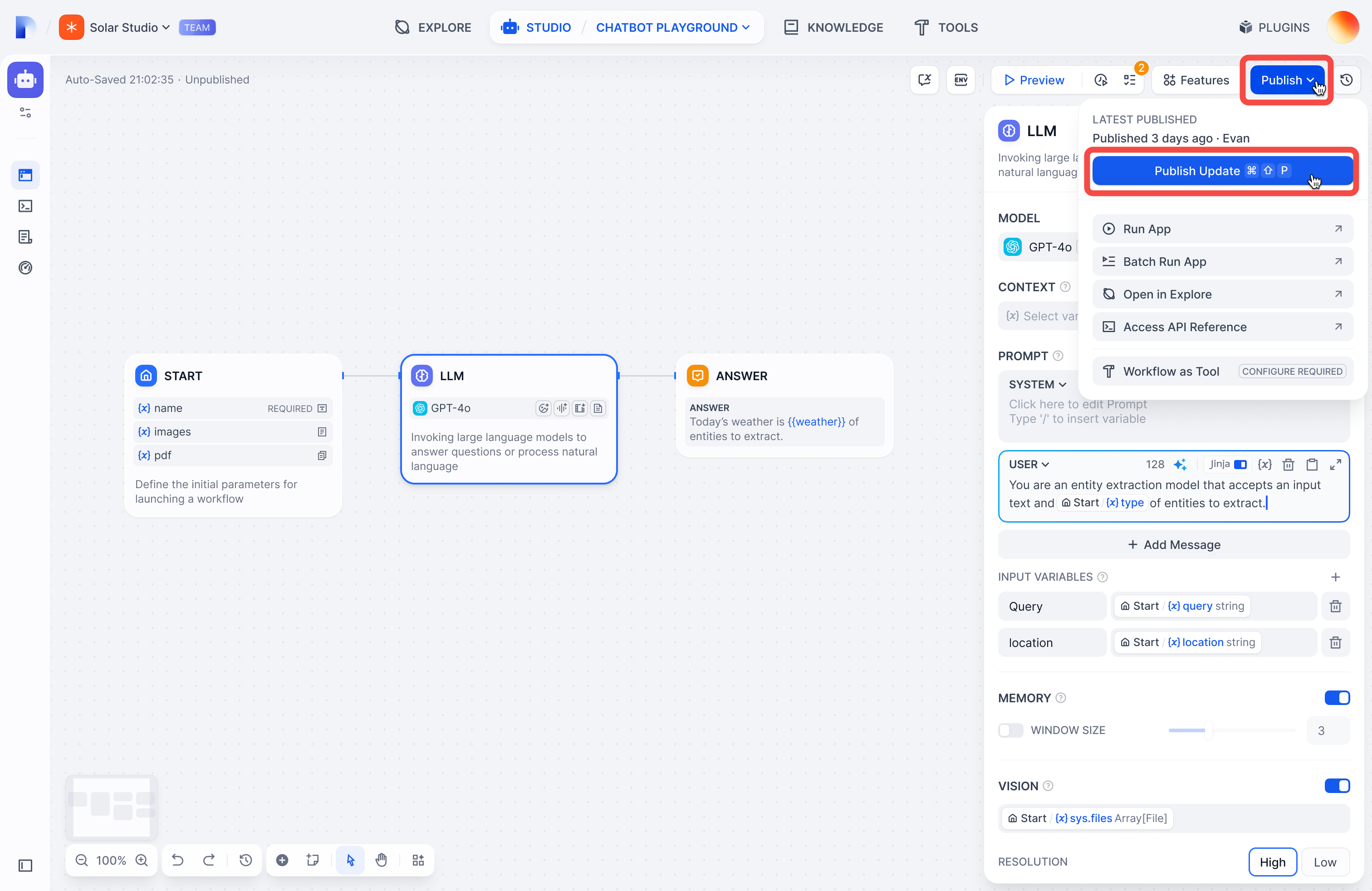
1. Click **Publish > Publish Update** to release the current version.
|
|
|
|
|
|
|
|
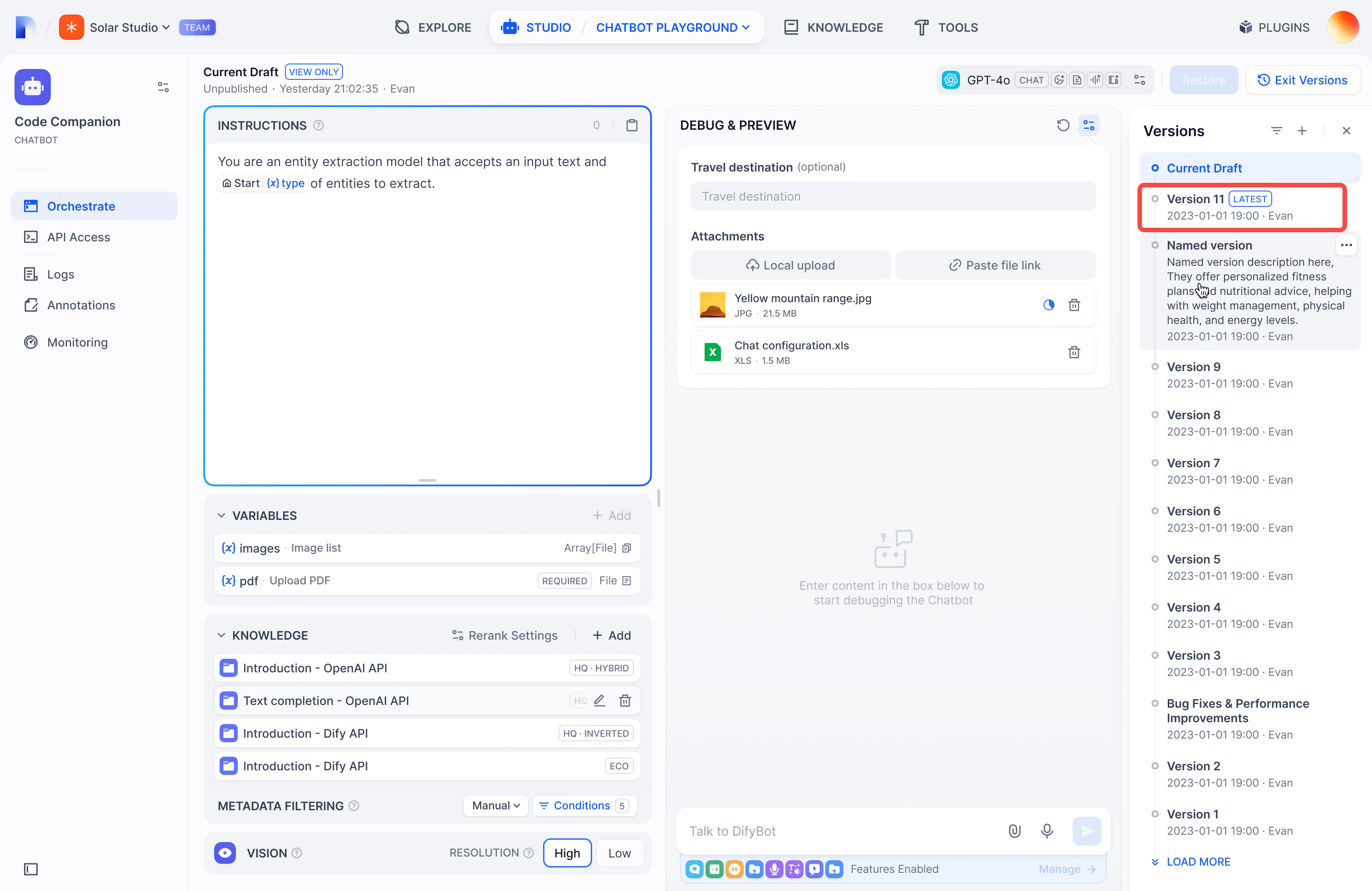
2. The newly published version will be marked as `Latest` in the panel.
|
|
|
|
|
|
|
|
## How to Edit a Published Version
|
|
|
|
To edit a published version:
|
|
|
|
1. In the Version Control Panel, find the version you want to edit.
|
|
|
|
2. Click its action menu icon.
|
|
|
|
3. Choose either:
|
|
- **Name this version** for versions with default names.
|
|
|
|
<img
|
|
src="https://assets-docs.dify.ai/2025/03/ac149f63da6611d7080d305dd3fad65c.jpg"
|
|
width="200"
|
|
className="mx-auto"
|
|
alt="name_this_version"
|
|
/>
|
|
|
|
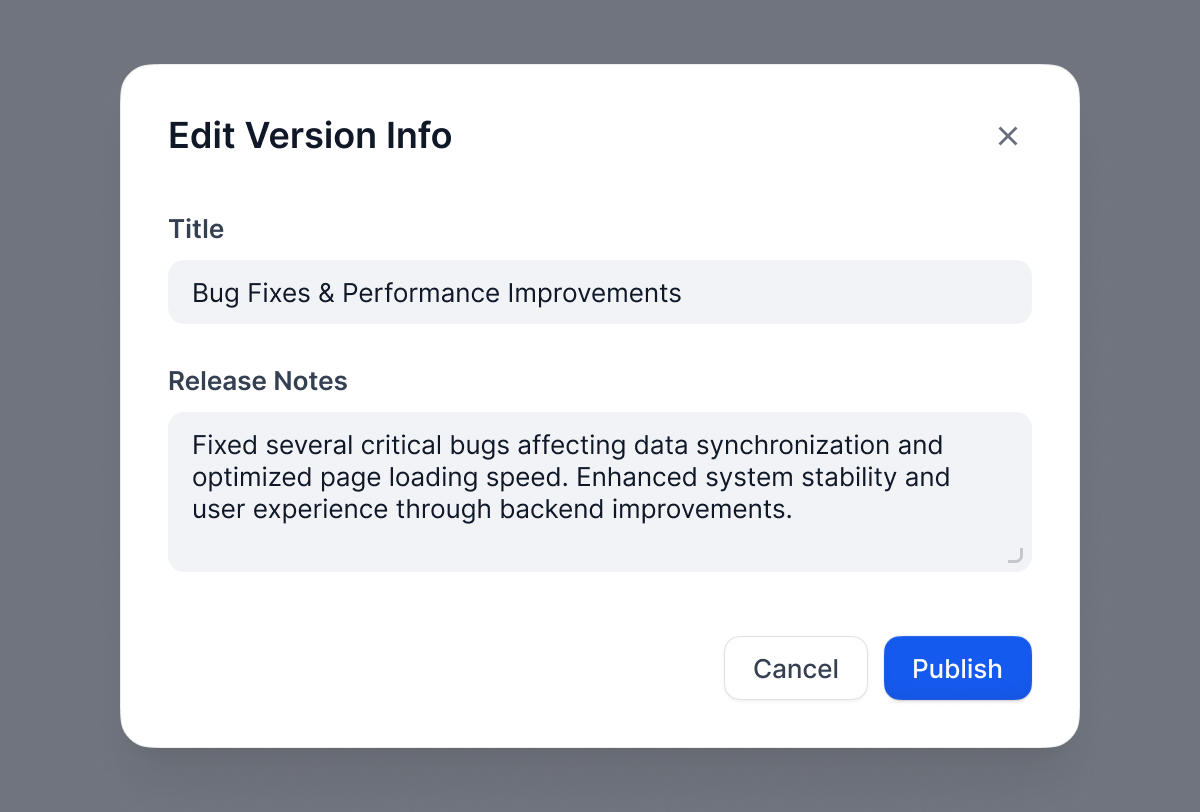
- **Edit version info** for versions with custom names.
|
|
|
|
<img
|
|
src="https://assets-docs.dify.ai/2025/03/1d840edf979132a9bbf1e065f95e663c.jpg"
|
|
width="200"
|
|
className="mx-auto"
|
|
alt="edit_version_info_1"
|
|
/>
|
|
|
|
4. Confirm **Publish**.
|
|
|
|
|
|
|
|
## How to Delete a Previous Version
|
|
|
|
To delete a Previous version:
|
|
|
|
1. Find the published version you want to delete.
|
|
|
|
2. Click the action menu icon and select **Delete**.
|
|
|
|
<img
|
|
src="https://assets-docs.dify.ai/2025/03/25ad1999fc9f6f44fcac04526ac5563a.jpg"
|
|
width="200"
|
|
className="mx-auto"
|
|
alt="delete_version"
|
|
/>
|
|
|
|
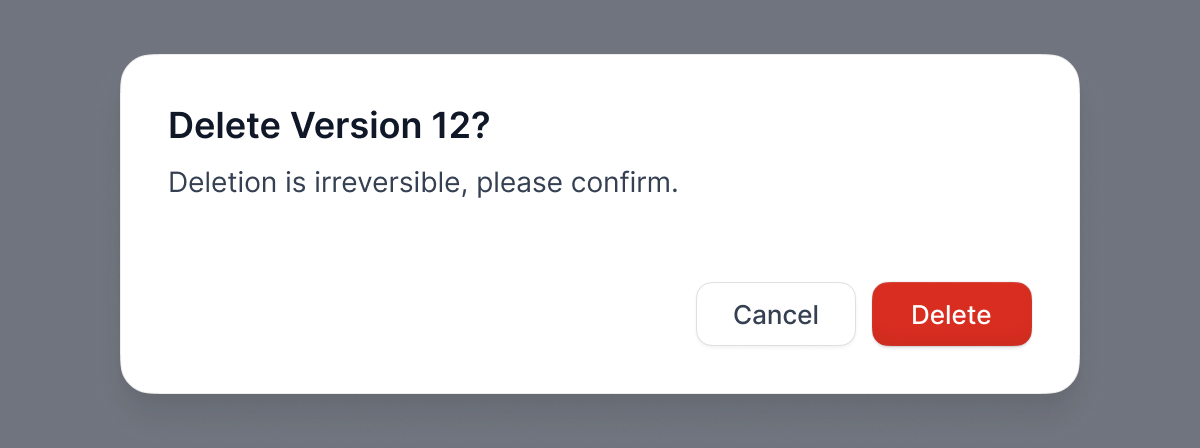
3. Confirm **Delete**.
|
|
|
|
|
|
|
|
<Warning>
|
|
- The **Current Draft** cannot be deleted
|
|
- The **Latest Version** (marked as "Latest") cannot be deleted
|
|
</Warning>
|
|
|
|
## How to Restore a Published Version
|
|
|
|
To restore a published version:
|
|
|
|
1. Find the published version you want to restore.
|
|
|
|
2. Click its action menu icon and select **Restore**.
|
|
|
|
<img
|
|
src="https://assets-docs.dify.ai/2025/03/c96b714accc29df8e46e711782a7a6a9.jpg"
|
|
width="200"
|
|
className="mx-auto"
|
|
alt="restore_version"
|
|
/>
|
|
|
|
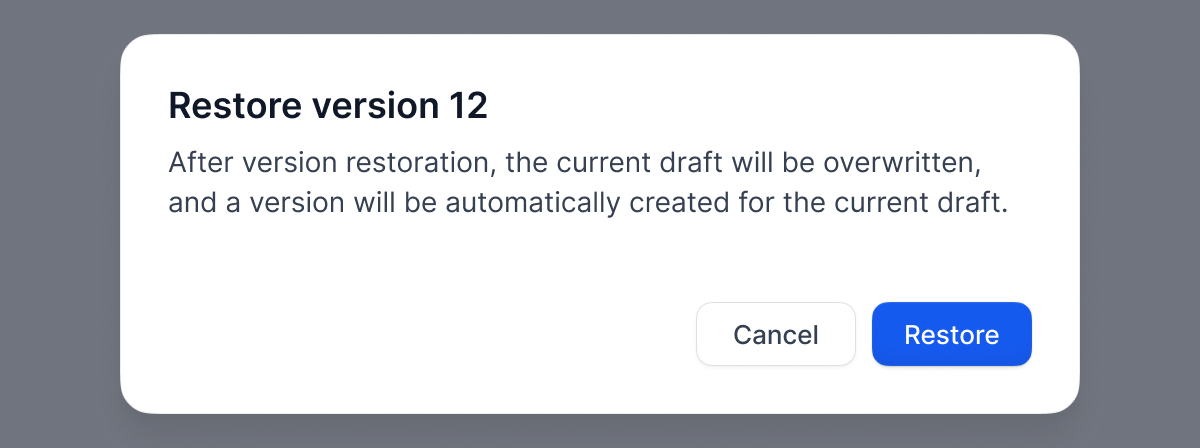
3. Confirm **Restore**. The system will load the selected version into your current draft.
|
|
|
|
|
|
|
|
## Version Control Workflow
|
|
|
|
Here is how versions work through a typical workflow:
|
|
|
|
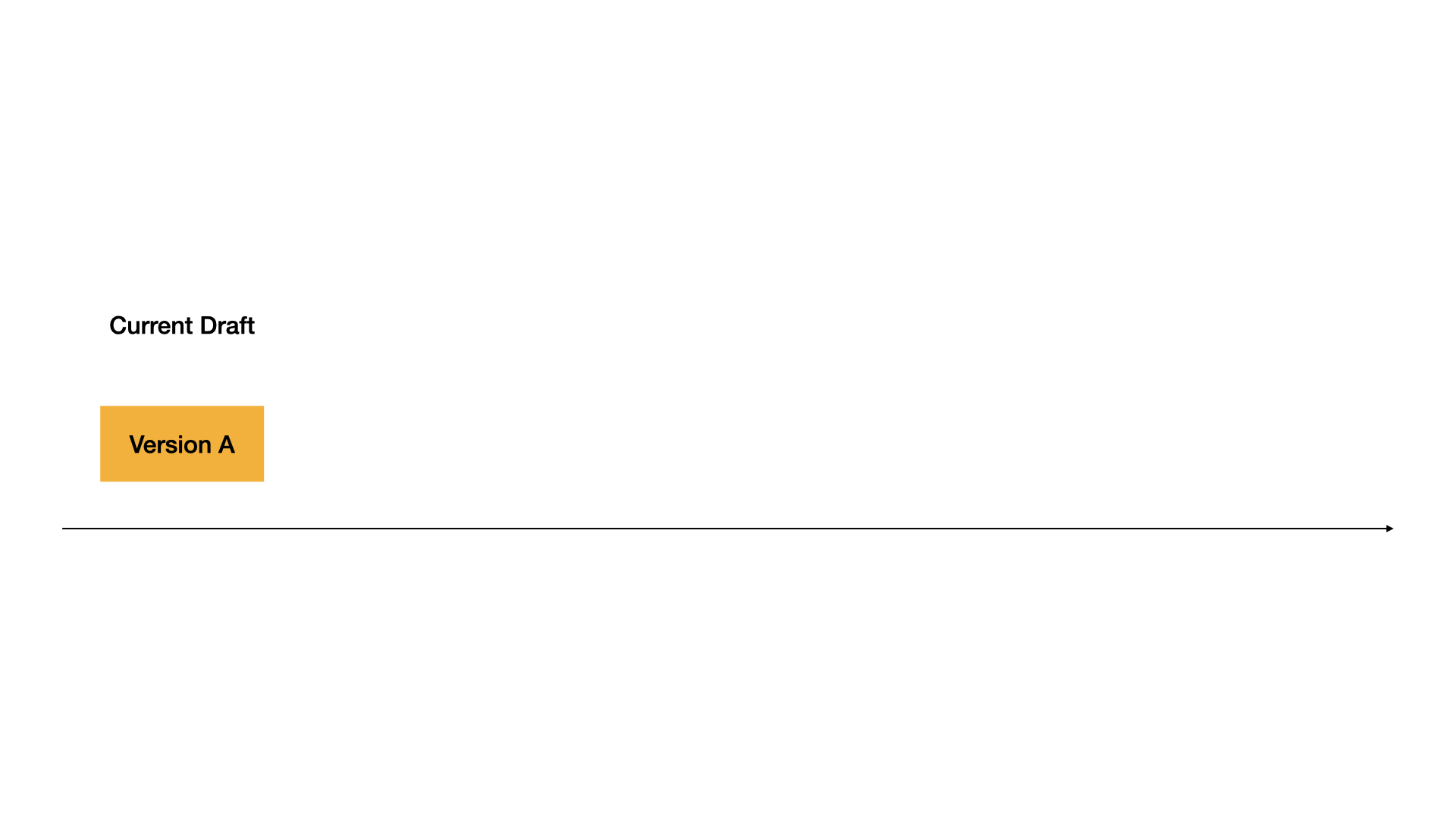
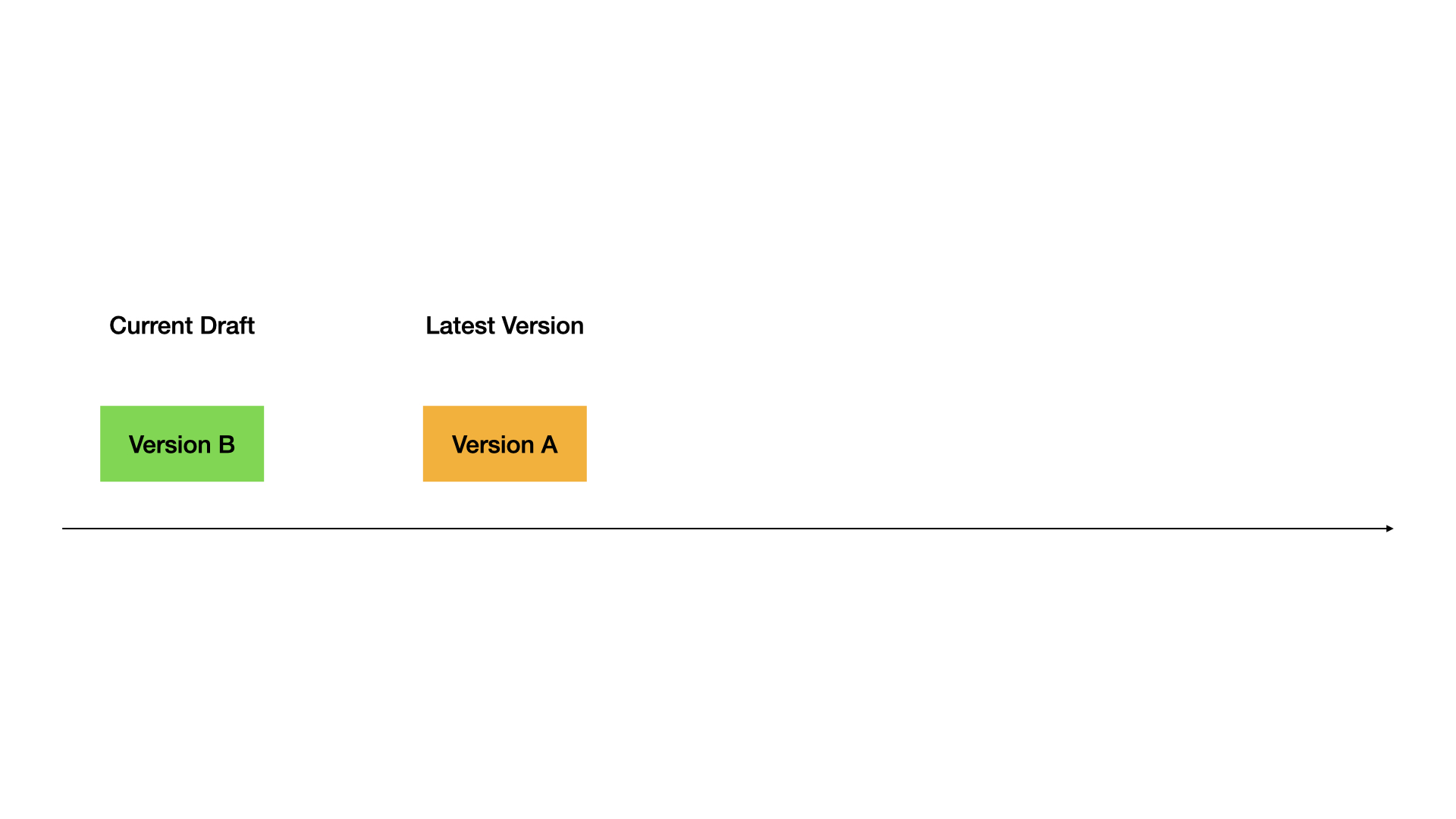
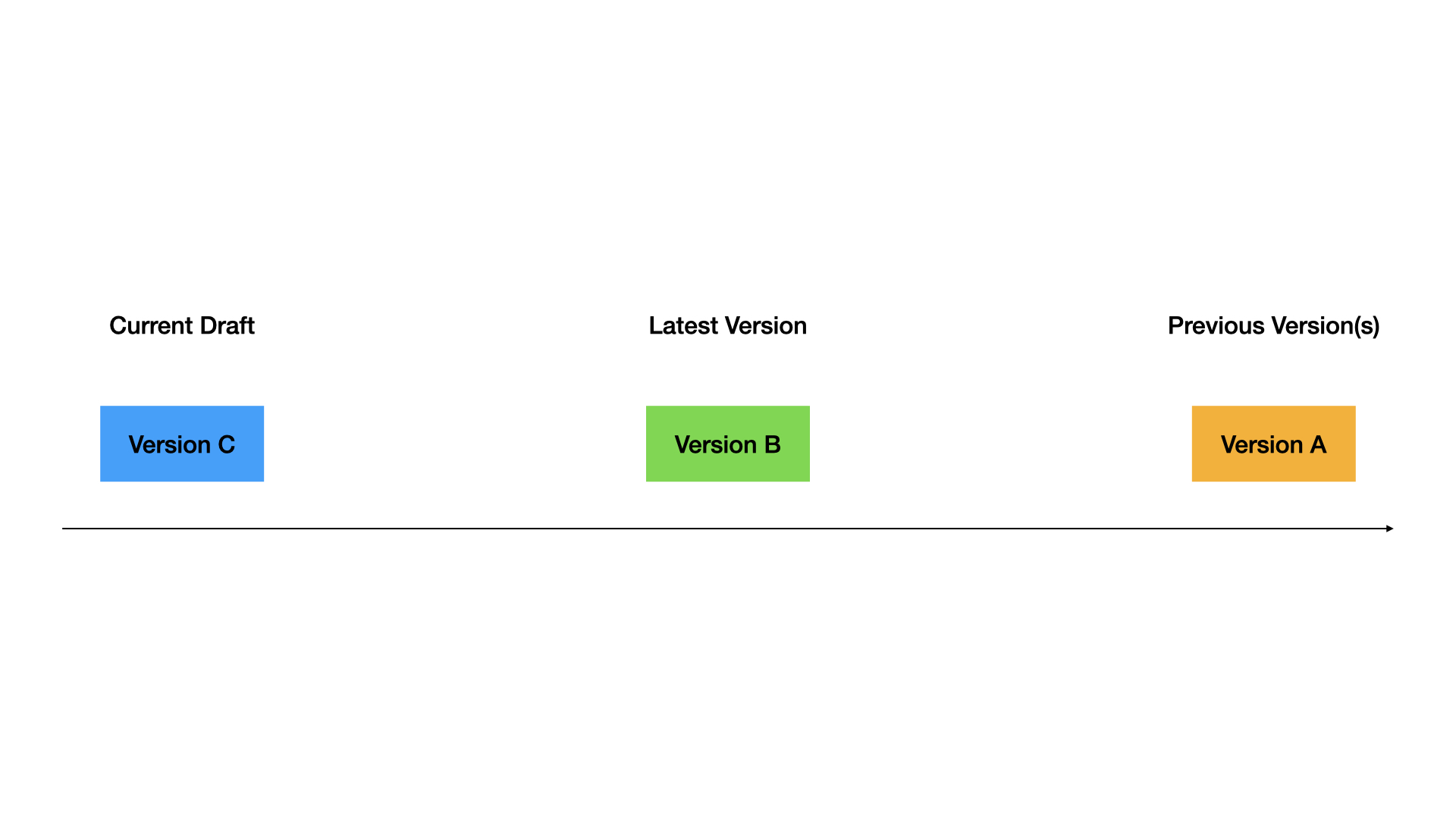
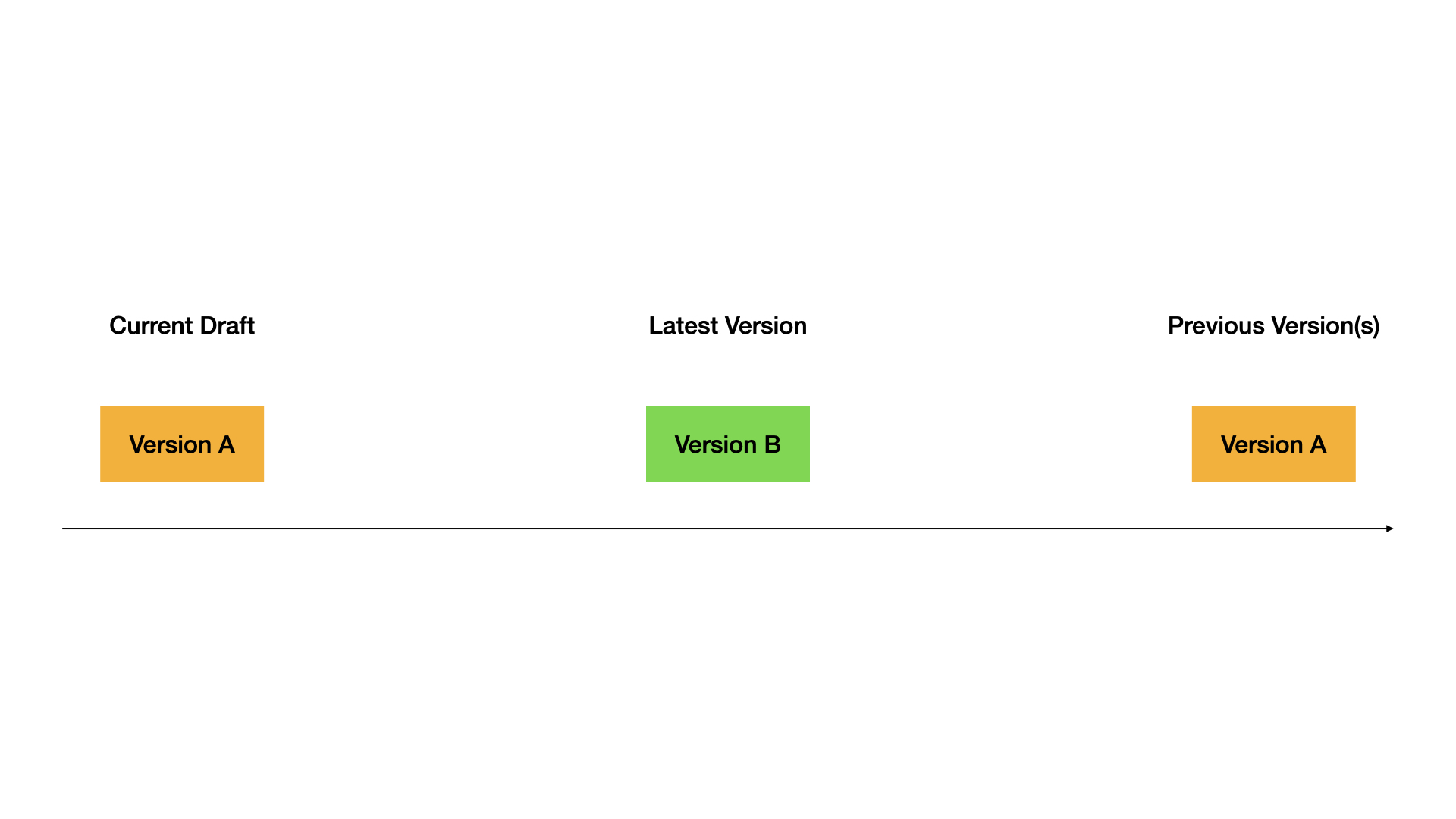
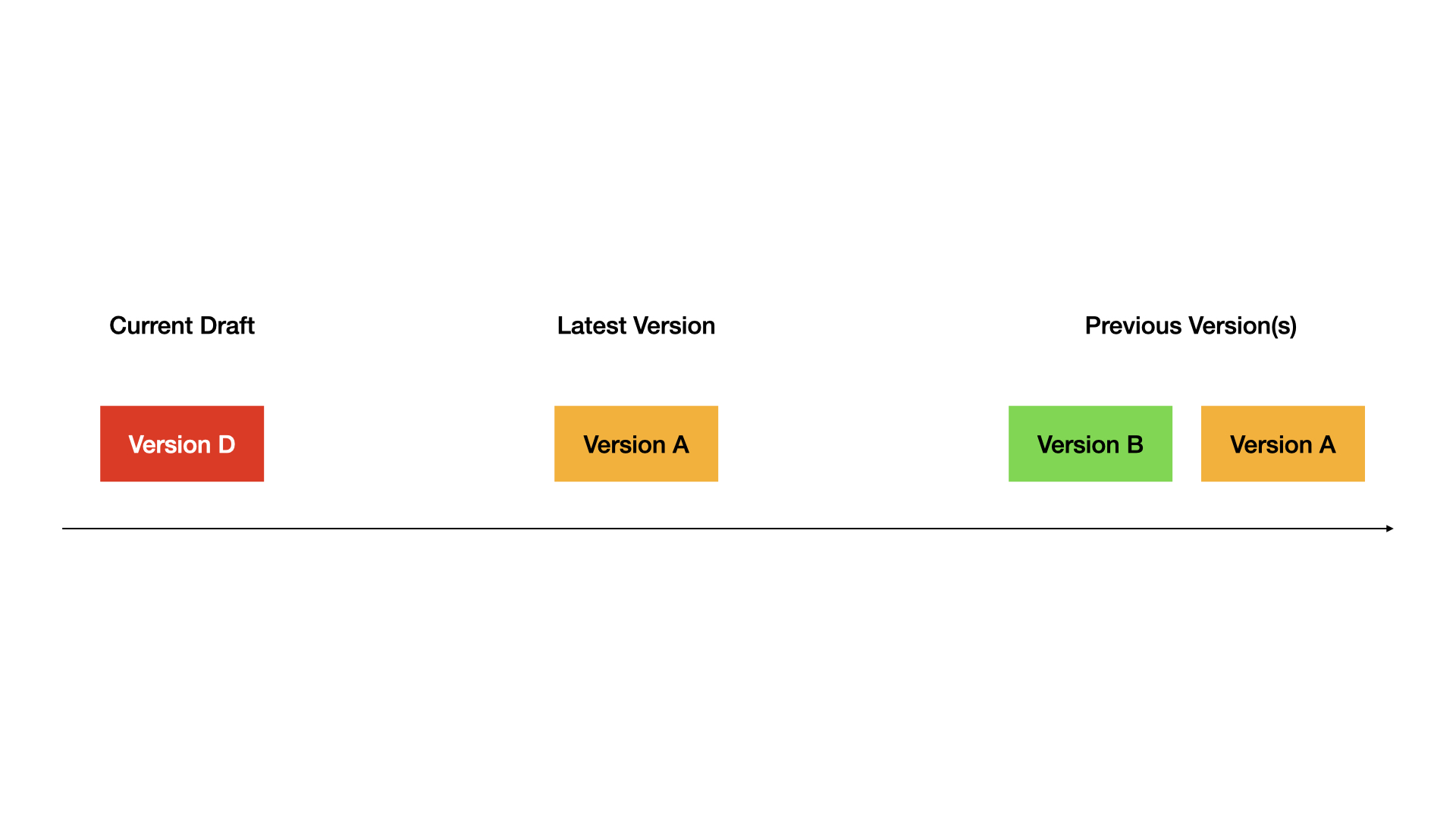
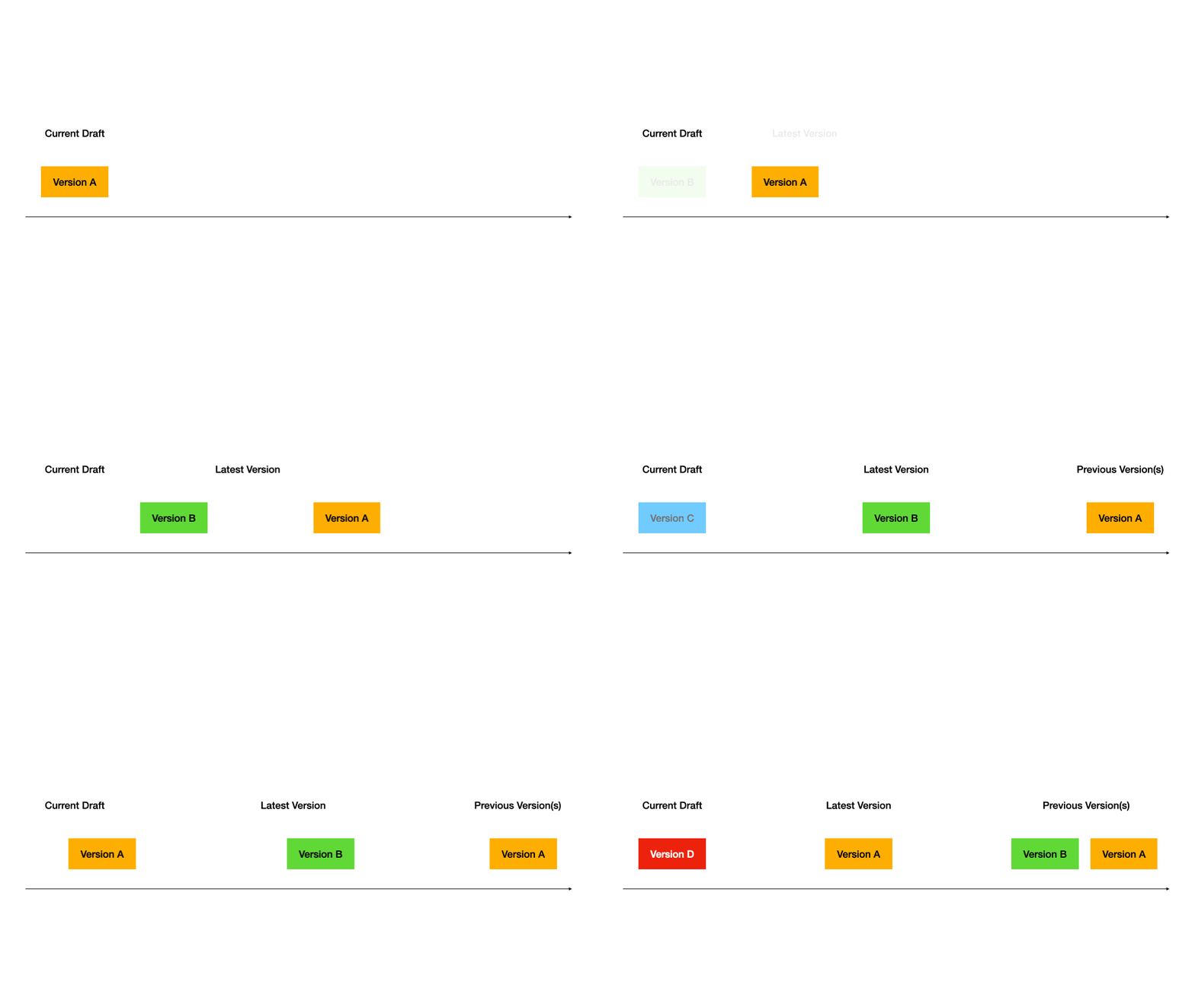
> Note: Matching colors indicate identical version content.
|
|
|
|
### Phase 1: Initial Draft
|
|
|
|
- System creates a **Draft** (Version A).
|
|
|
|
|
|
|
|
### Phase 2: First Release
|
|
|
|
- Version A is published, becoming the **Latest Version**.
|
|
- System creates a new **Draft** (Version B).
|
|
|
|
|
|
|
|
### Phase 3: Second Release
|
|
|
|
- Version B is published, becoming the **Latest Version**.
|
|
- Version A becomes a **Previous Version**.
|
|
- System creates a new **Draft** (Version C).
|
|
|
|
|
|
|
|
### Phase 4: Restore
|
|
|
|
- Version A is restored to **Draft**, replacing Version C.
|
|
- Version B remains the **Latest Version**.
|
|
|
|
|
|
|
|
### Phase 5: Publish a Restored Version
|
|
|
|
- Restored Version A is published, becoming the **Latest Version**.
|
|
- Previous Versions A and B become **Previous Versions**.
|
|
- System creates a new **Draft** (Version D).
|
|
|
|
|
|
|
|
### Complete Workflow Demo
|
|
|
|
|
|
|
|
## FAQ
|
|
|
|
- **What are the different version types?**
|
|
|
|
| Type | Description | Access | Deletion | Restoration |
|
|
|------|-------------|---------|-----------|-------------|
|
|
| Current Draft | Current work in progress | Requires publishing to go live | Not accessible online | Not deletable |
|
|
| Latest Version | Current live version | Requires new draft for updates | Live and accessible | Can be restored |
|
|
| Previous Version | Previous published versions | Can restore to draft | Stored in history only | Can be restored |
|
|
| Published Version | Includes both latest and previous versions | / | / | / |
|
|
|
|
- **What happens to my current draft when restoring a previous version?**
|
|
|
|
When restoring a previous version, that version's content becomes your new draft. Your current draft will be lost, so please review changes carefully before proceeding.
|
|
|
|
- **Which apps support version control?**
|
|
|
|
Version control is currently available for **Chatflow** and **Workflow** applications only. It is not yet supported for **Chatbot**, **Text Generator**, or **Agents**.
|
|
|
|
{/*
|
|
Contributing Section
|
|
DO NOT edit this section!
|
|
It will be automatically generated by the script.
|
|
*/}
|
|
|
|
---
|
|
|
|
[Edit this page](https://github.com/langgenius/dify-docs/edit/main/en/guides/management/version-control.mdx) | [Report an issue](https://github.com/langgenius/dify-docs/issues/new?template=docs.yml)
|
|
|