mirror of
https://github.com/langgenius/dify-docs.git
synced 2026-03-27 13:28:32 +07:00

47 lines
1.9 KiB
Plaintext
47 lines
1.9 KiB
Plaintext
---
|
|
dimensions:
|
|
type:
|
|
primary: reference
|
|
detail: core
|
|
level: beginner
|
|
standard_title: Remote Debug a Plugin
|
|
language: en
|
|
title: Plugin Debugging
|
|
description: This document introduces how to use Dify's remote debugging feature to
|
|
test plugins. It provides detailed instructions on obtaining debugging information,
|
|
configuring environment variable files, starting plugin remote debugging, and verifying
|
|
plugin installation status. Through this method, developers can test plugins in
|
|
the Dify environment in real-time while developing locally.
|
|
---
|
|
|
|
After completing plugin development, the next step is to test whether the plugin can function properly. Dify provides a convenient remote debugging method to help you quickly verify plugin functionality in a test environment.
|
|
|
|
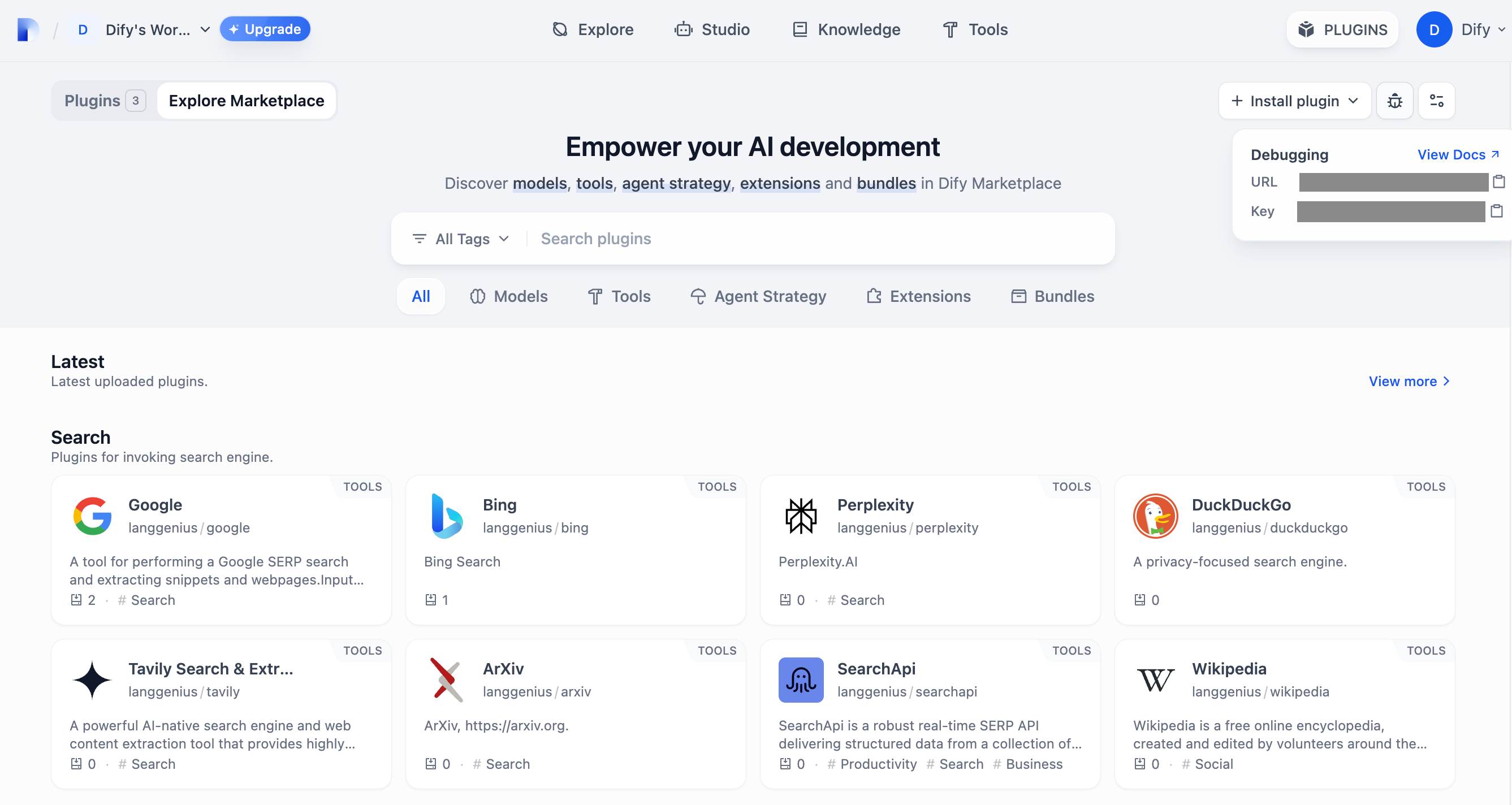
Go to the ["Plugin Management"](https://cloud.dify.ai/plugins) page to obtain the remote server address and debugging Key.
|
|
|
|
|
|
|
|
Return to the plugin project, copy the `.env.example` file and rename it to `.env`, then fill in the remote server address and debugging Key information you obtained.
|
|
|
|
`.env` file:
|
|
|
|
```bash
|
|
INSTALL_METHOD=remote
|
|
REMOTE_INSTALL_URL=debug.dify.ai:5003
|
|
REMOTE_INSTALL_KEY=********-****-****-****-************
|
|
```
|
|
|
|
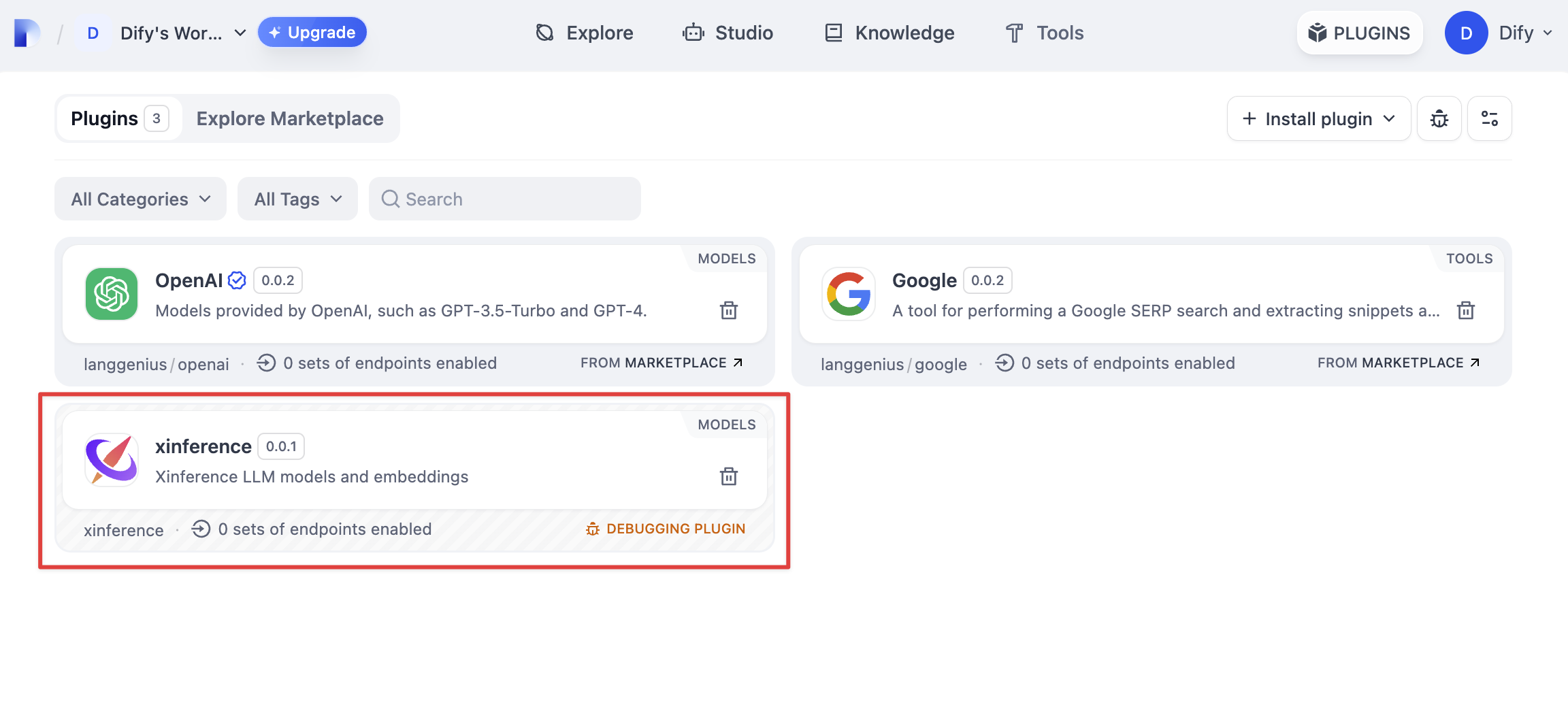
Run the `python -m main` command to start the plugin. On the plugins page, you can see that the plugin has been installed in the Workspace, and other members of the team can also access the plugin.
|
|
|
|
|
|
|
|
{/*
|
|
Contributing Section
|
|
DO NOT edit this section!
|
|
It will be automatically generated by the script.
|
|
*/}
|
|
|
|
---
|
|
|
|
[Edit this page](https://github.com/langgenius/dify-docs/edit/main/plugin-dev-en/0411-remote-debug-a-plugin.mdx) | [Report an issue](https://github.com/langgenius/dify-docs/issues/new?template=docs.yml)
|
|
|